¶ 1. Make all the corners round
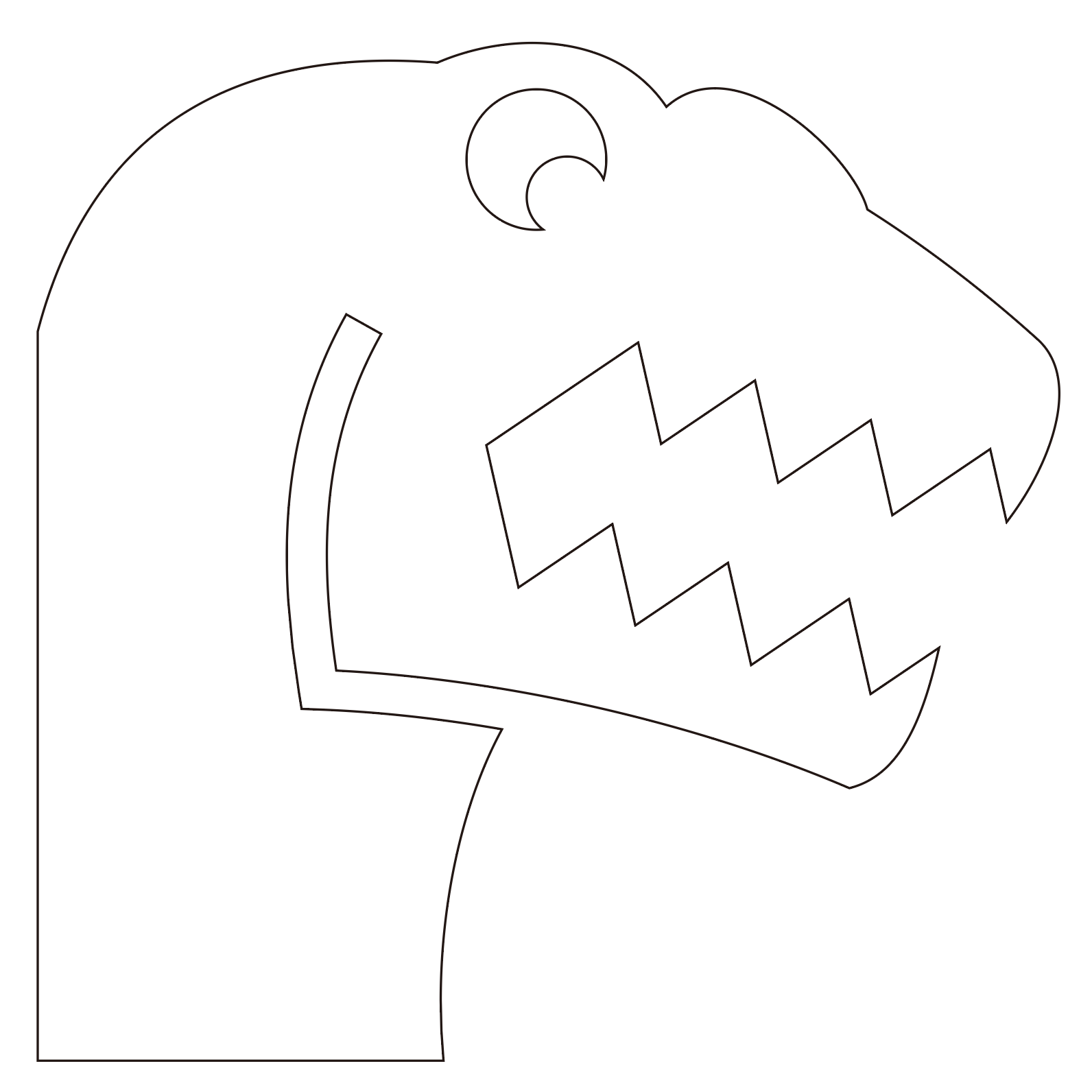
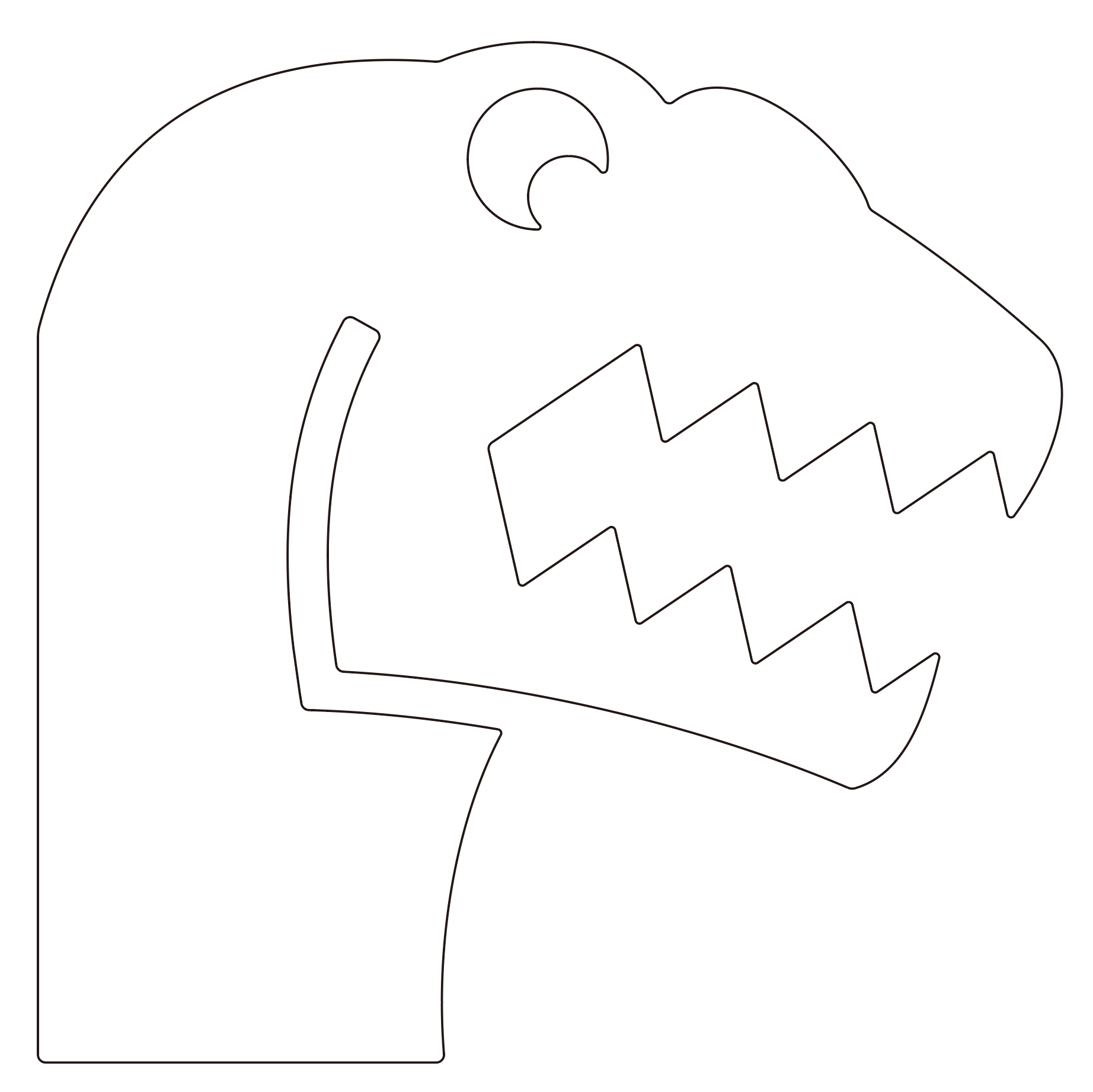
To ensure good print quality, you need to round all the corners in SVG files.
¶ 1.1 Why do you need to round the corners?
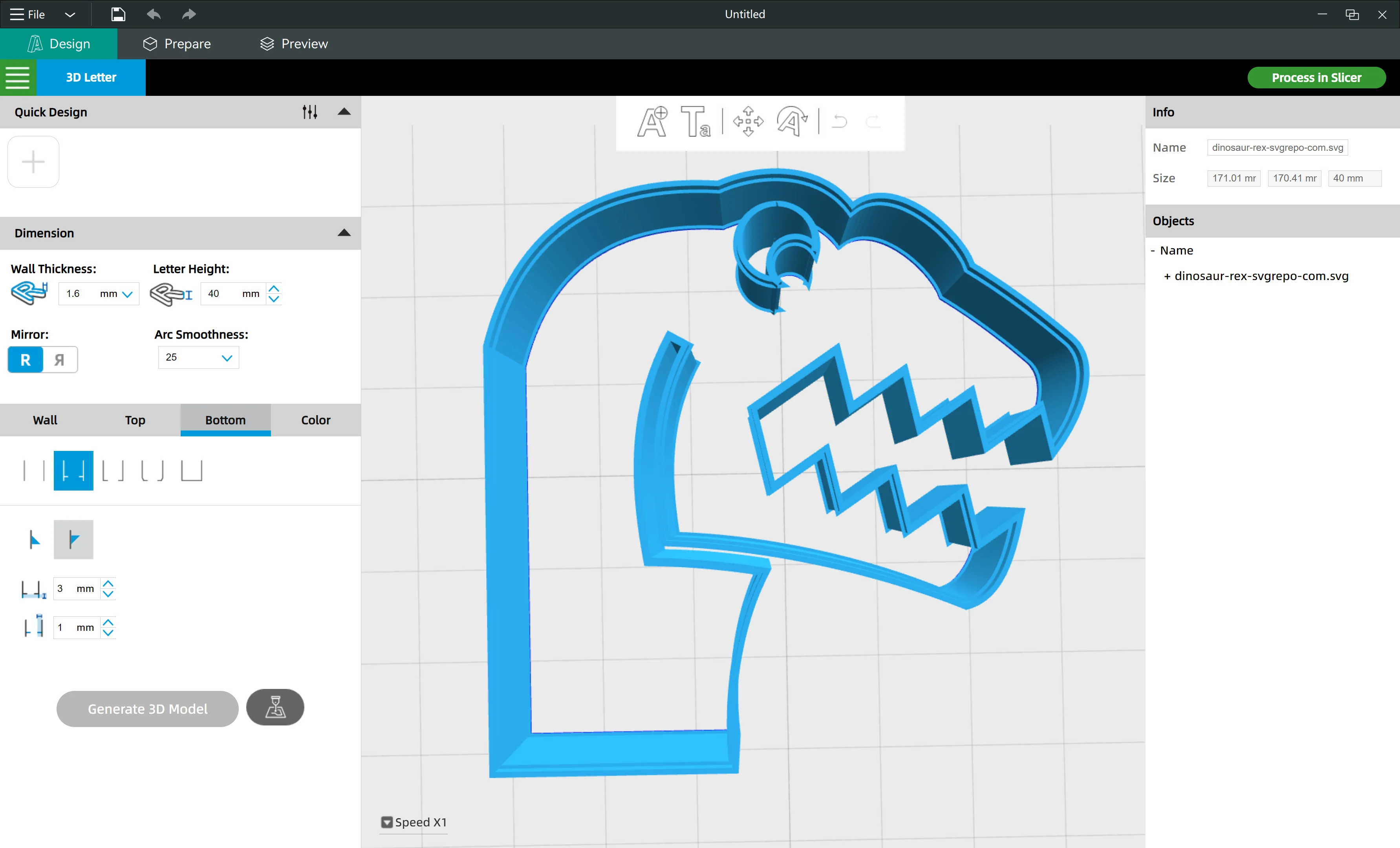
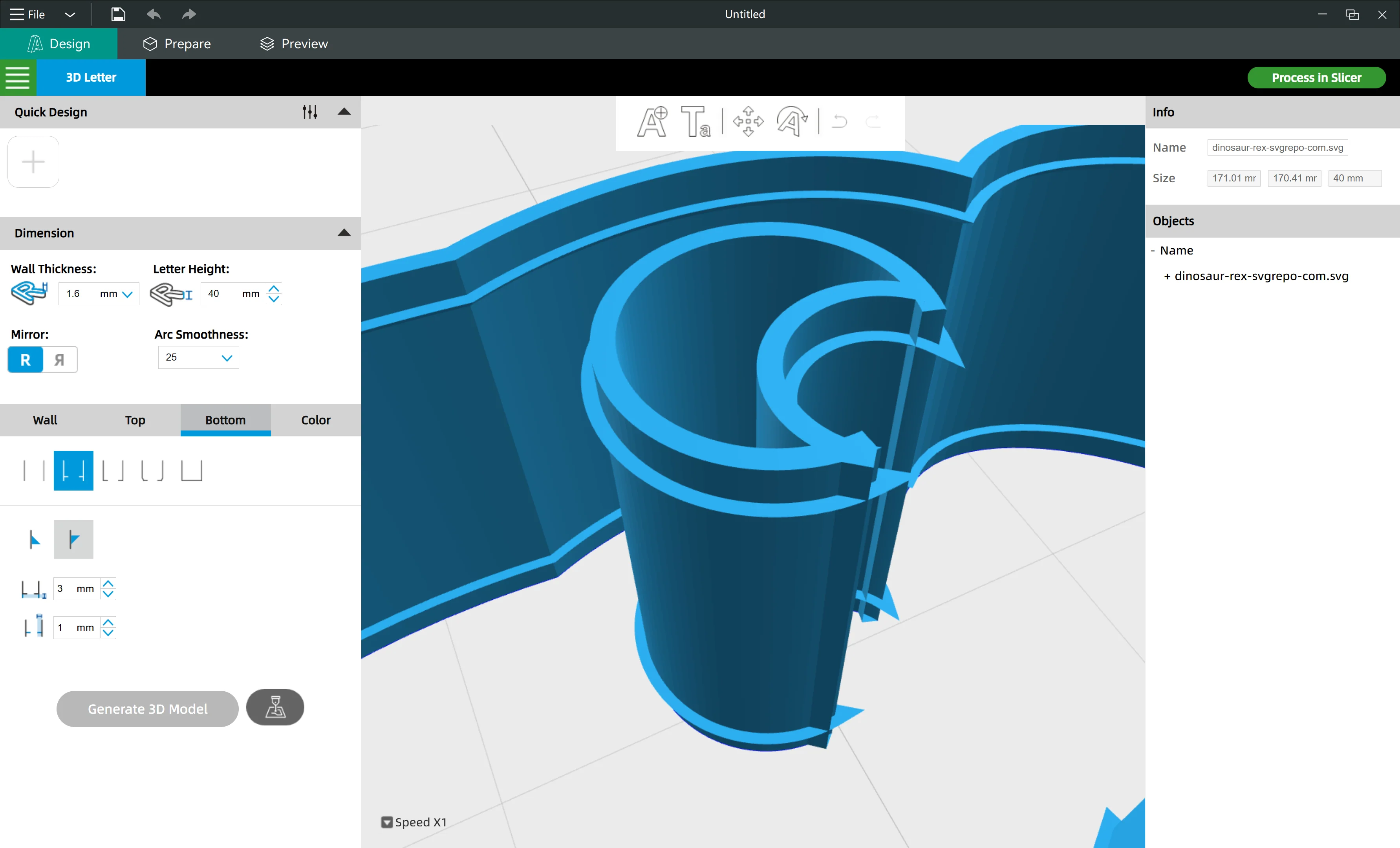
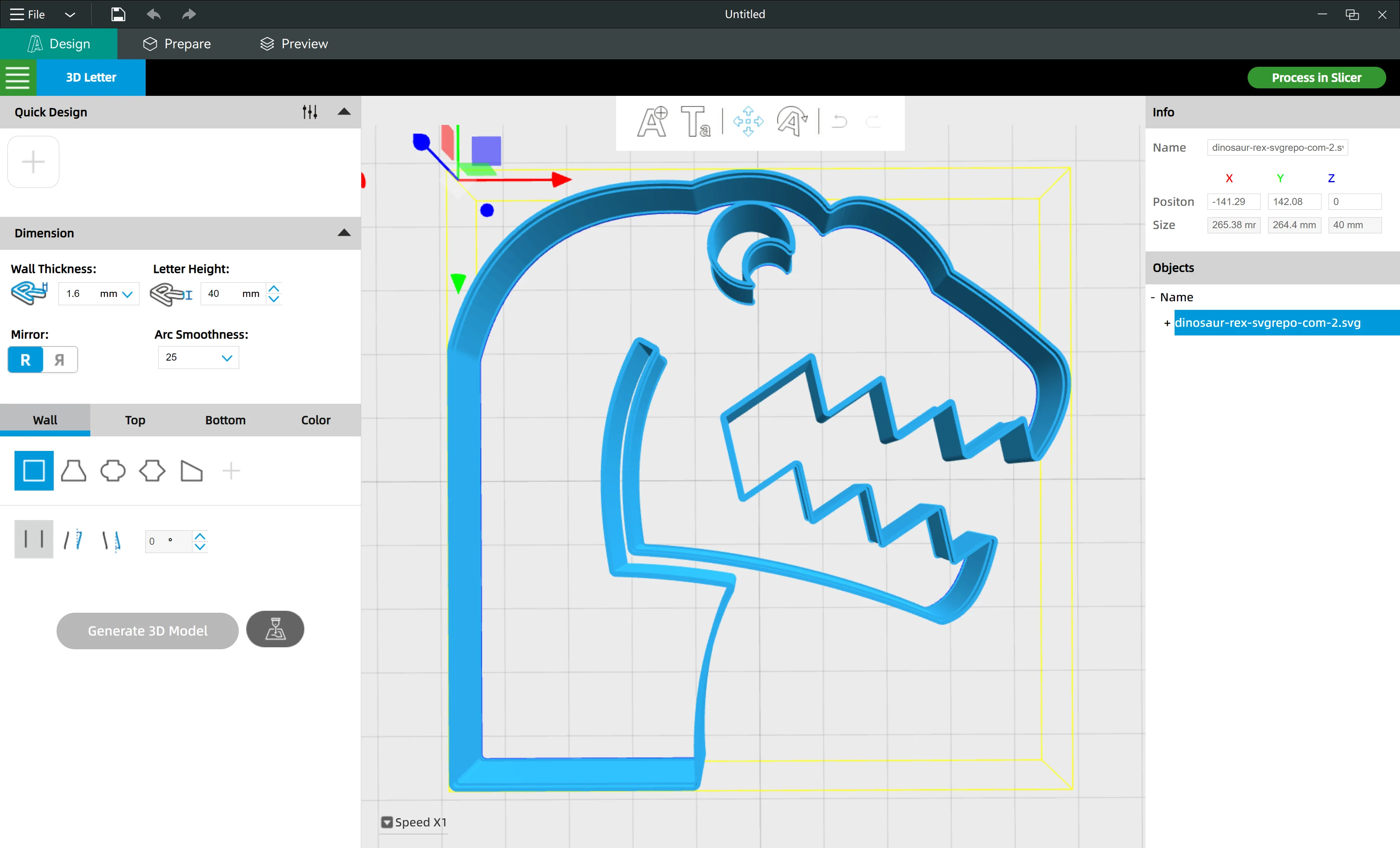
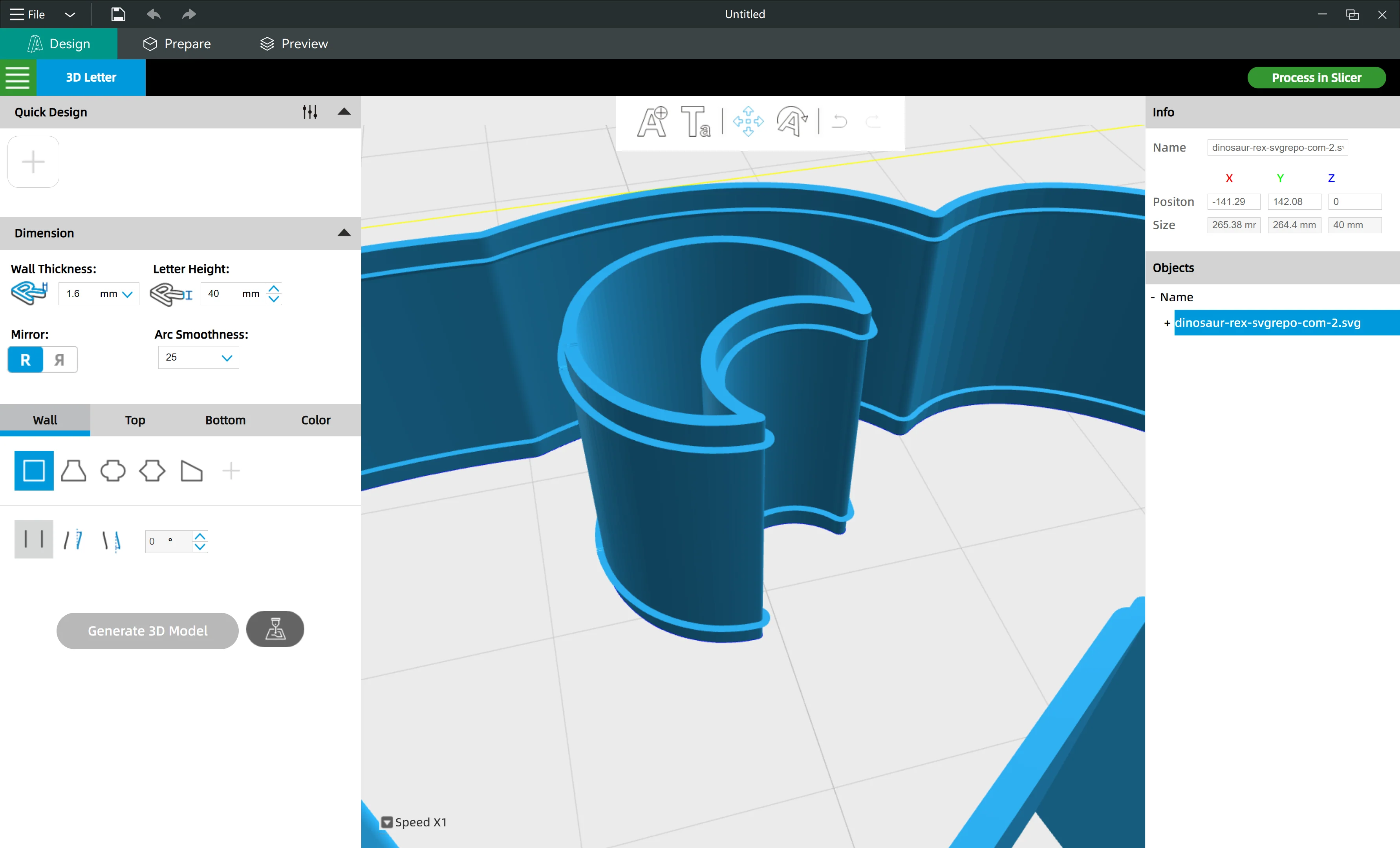
Sharp corners will cause:
- slot/step generation error
|
|
|
|
|
|
- bad print quality
3D print thin wall STL files with a lot of sharp corners will lead to too many tiny flow extrusion at the corners and a lot of retraction. This will lower print quality and print speed.
- annot export the right DXF cutting paths compatible with the CNC routers
If you generate a sharp corner STL file, you will export sharp corner DXF cutting path files, which are unavailable with CNC routers.
¶ 1.2 How to fix it (how to round the corners) ?
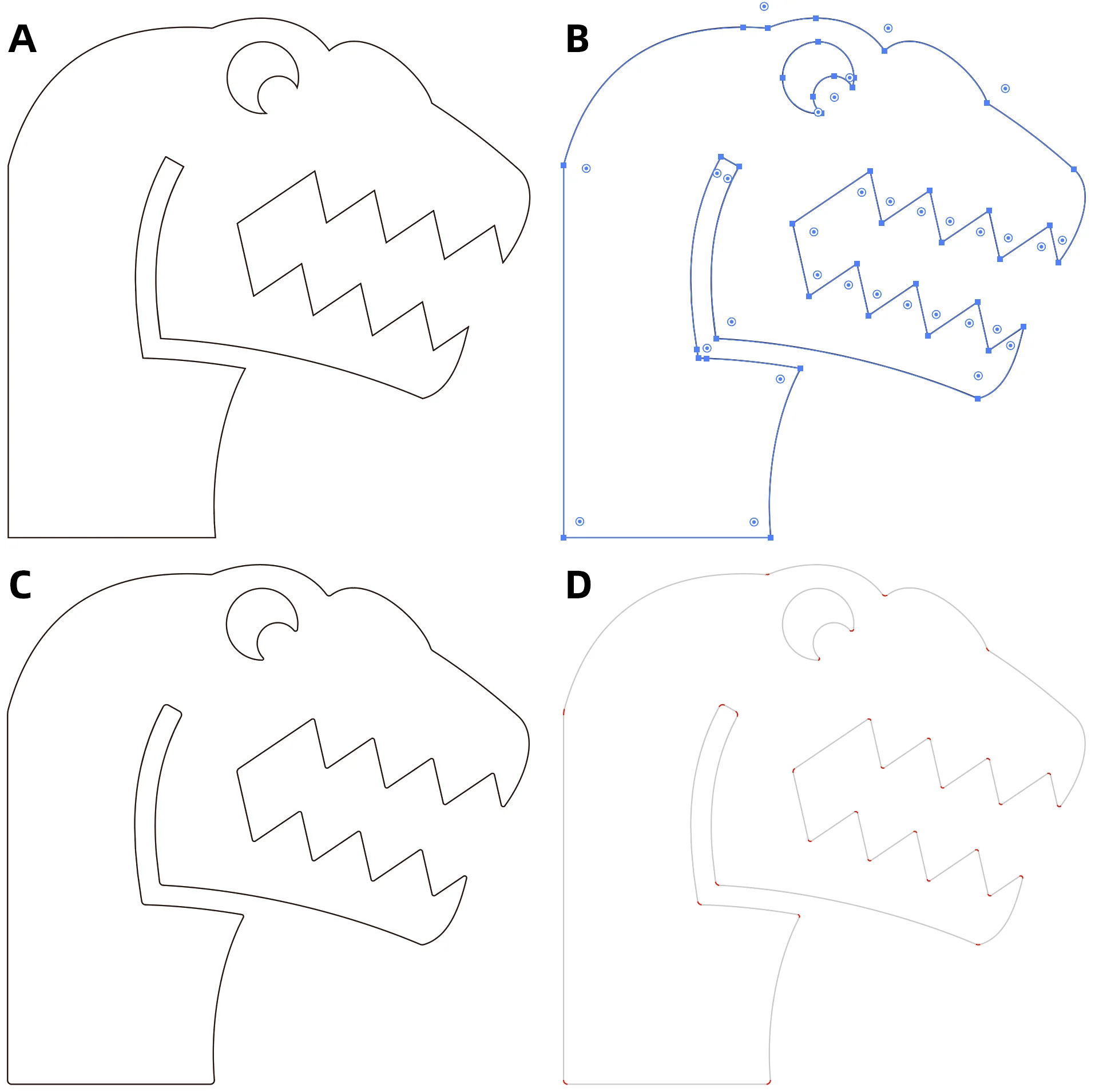
A: The original pattern with sharp corners.
B: Select the original pattern with the "Direct Selection Tool" to show all the sharp corners.
C: Use the "Corners" tool to round all the corners one by one. This is how the pattern looks after it's rounded.
D: In this pattern we mark all the rounded corners with red color.
¶ 1.3 Reference courses
- How to Round Corners in Illustrator
- Watch How to round corners of any shape in CorelDraw | 1 min Tutorials
- How to Add Curves or Round Corners in Inkscape
¶ 2. Round the inboard of acute angles with bigger ratio
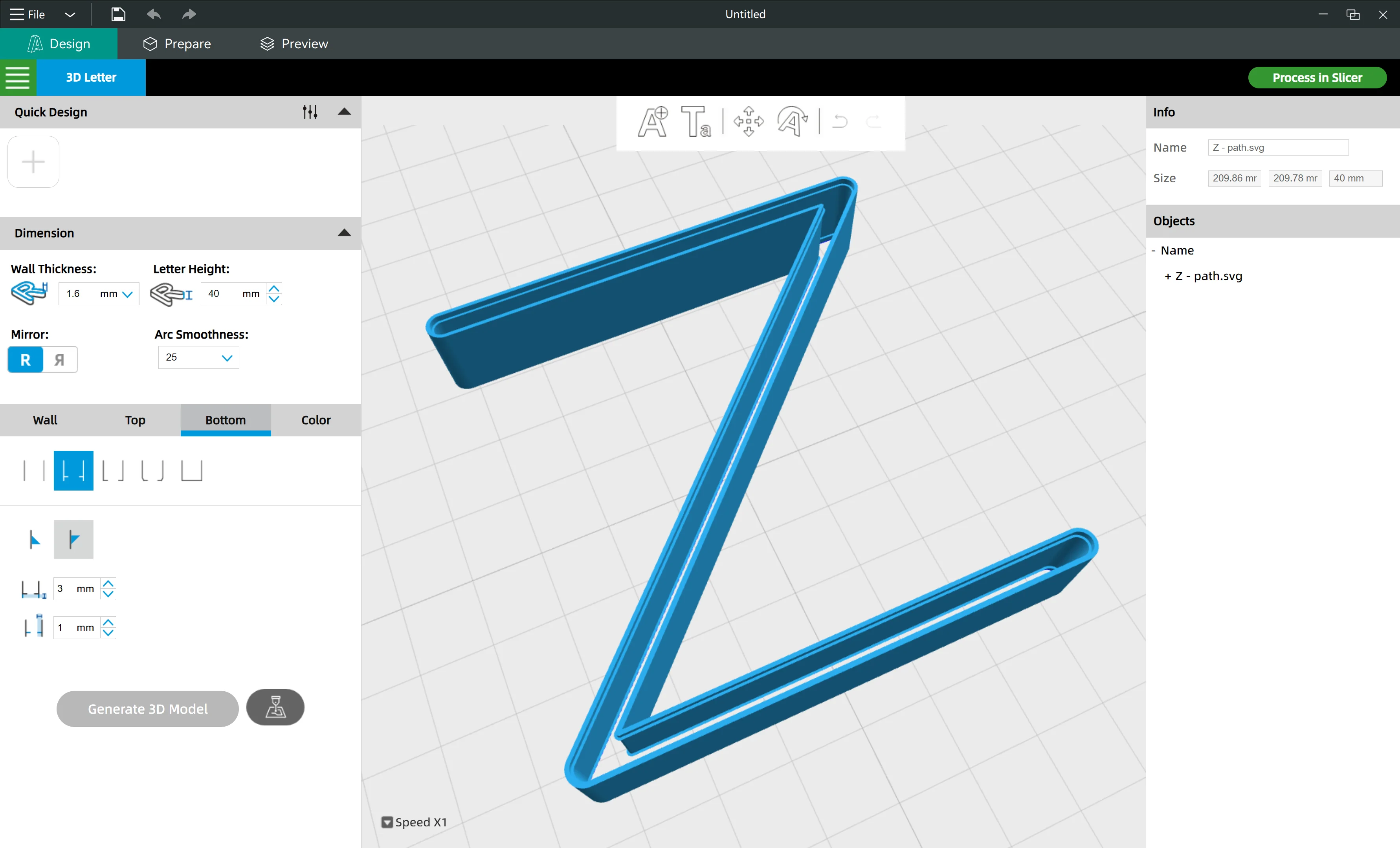
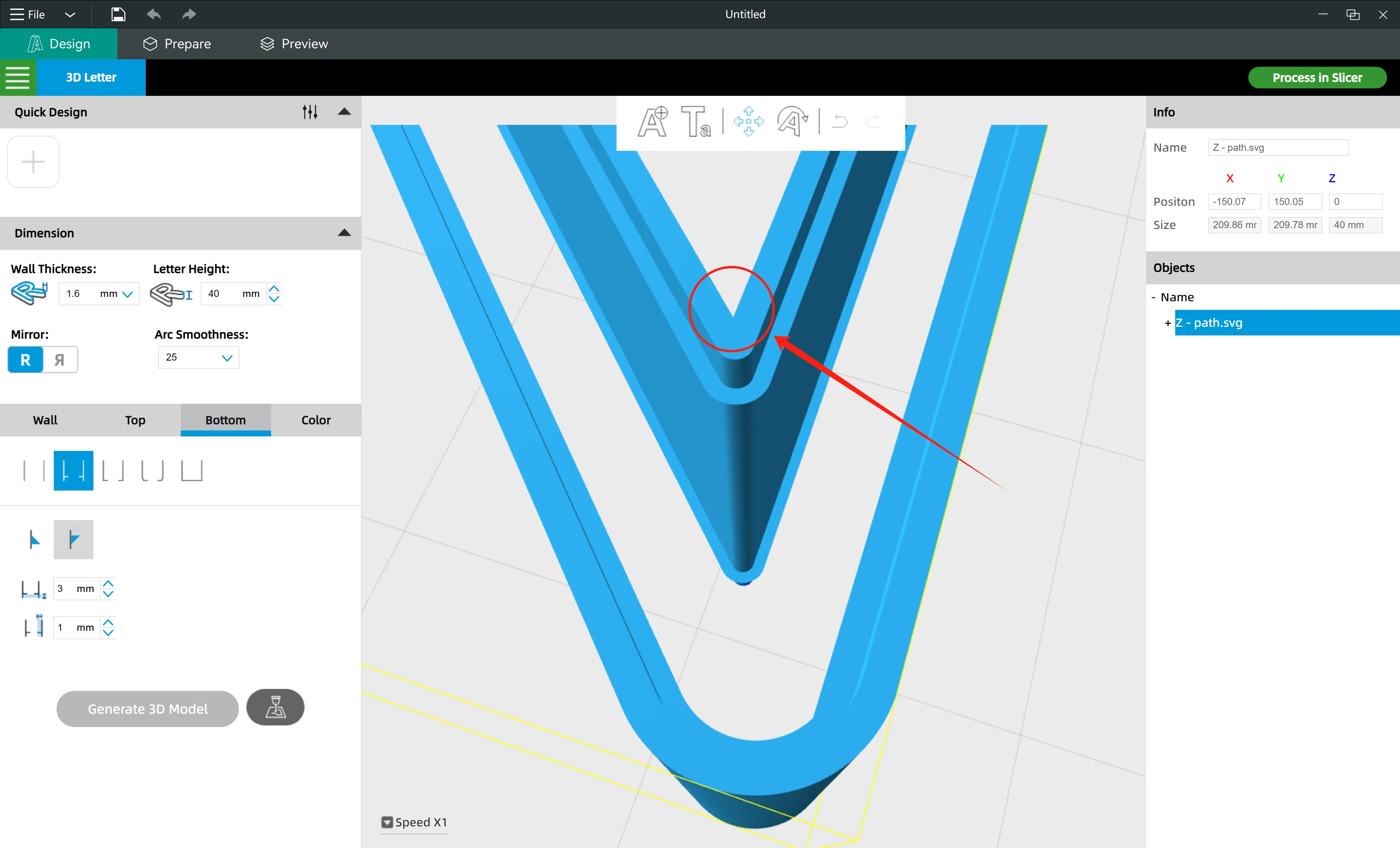
When FormLetter generates a 3D model, it generates the thickness of the 3D model at the inboard of the outlines.
¶ 2.1 Schematic Diagram

|

|
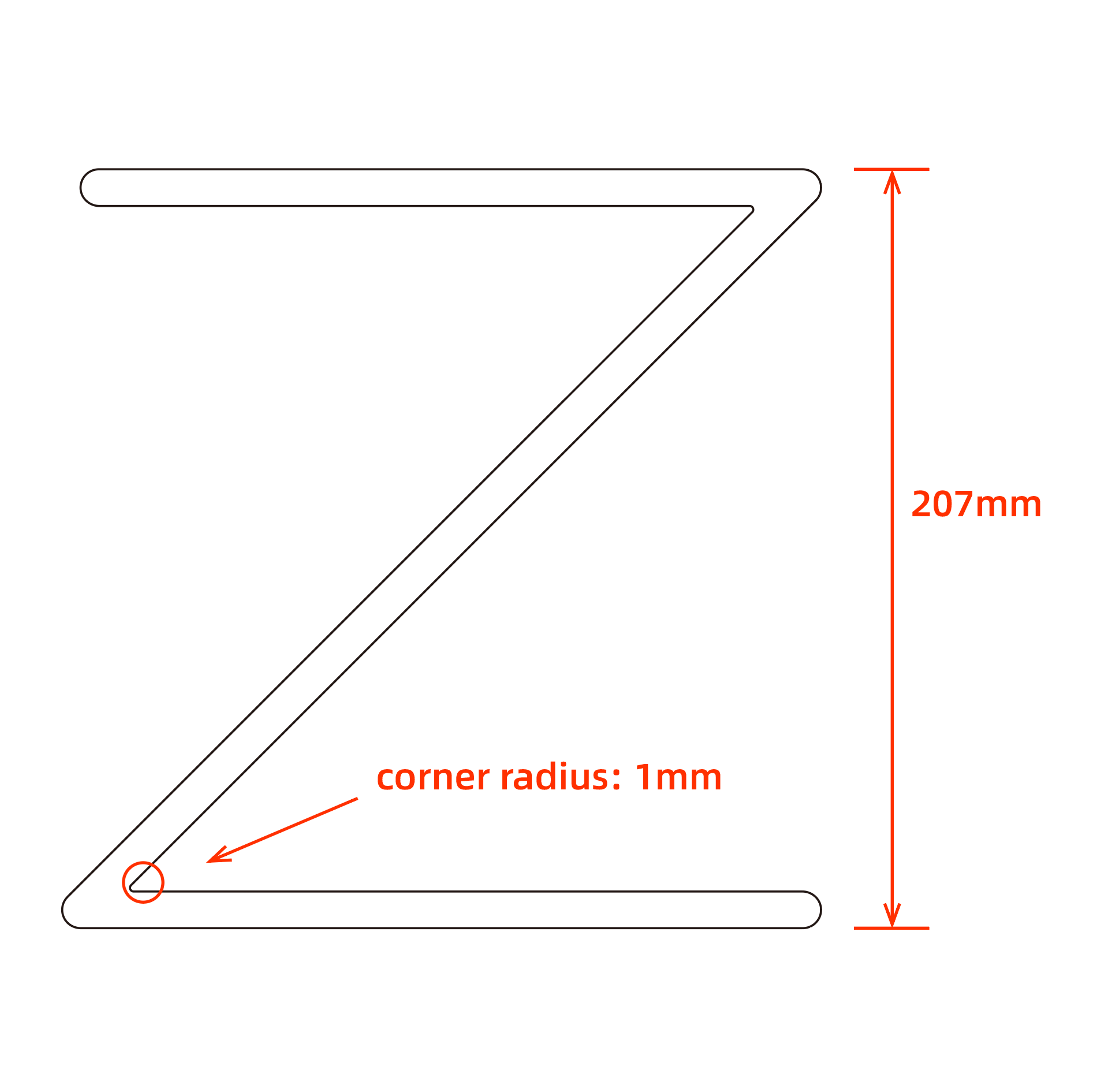
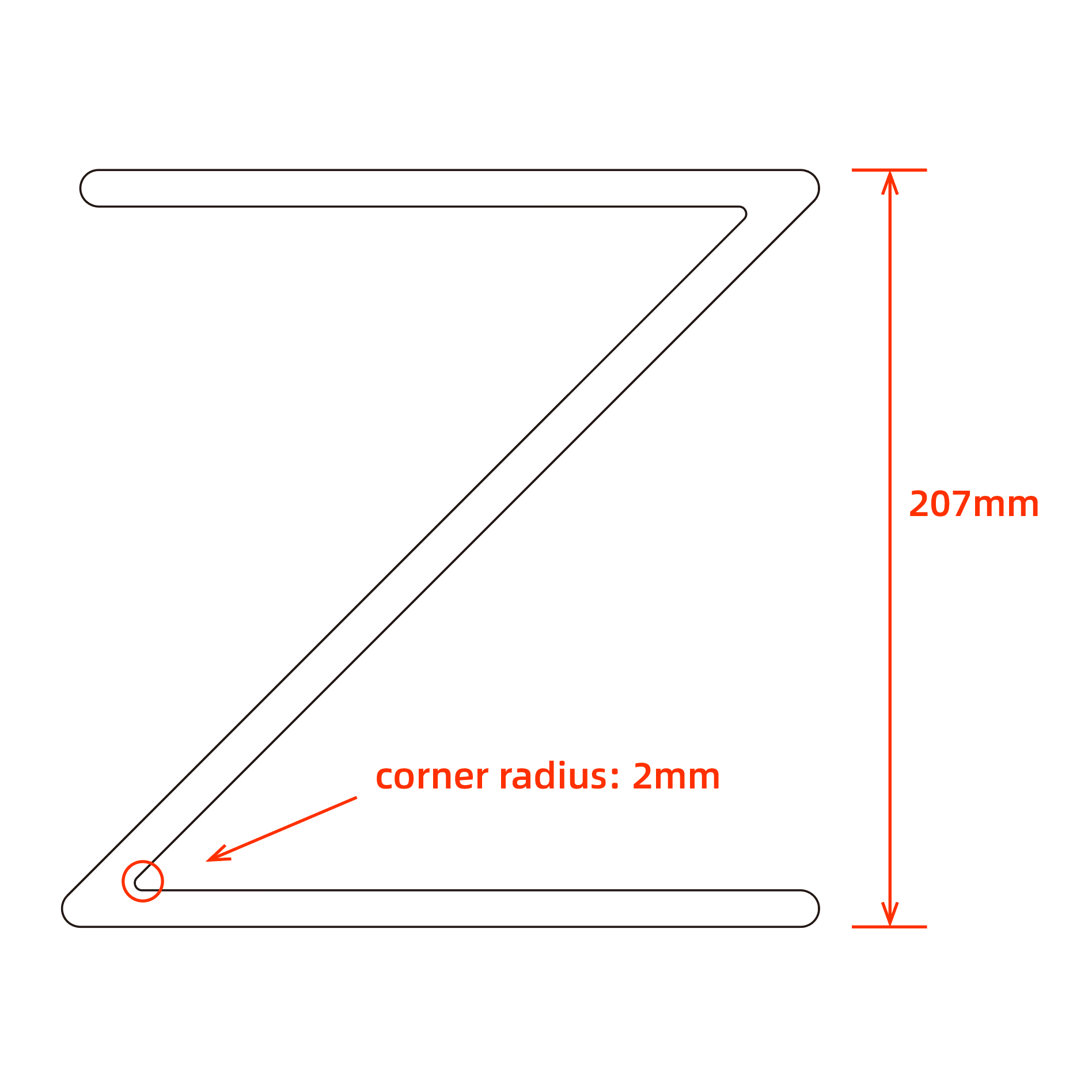
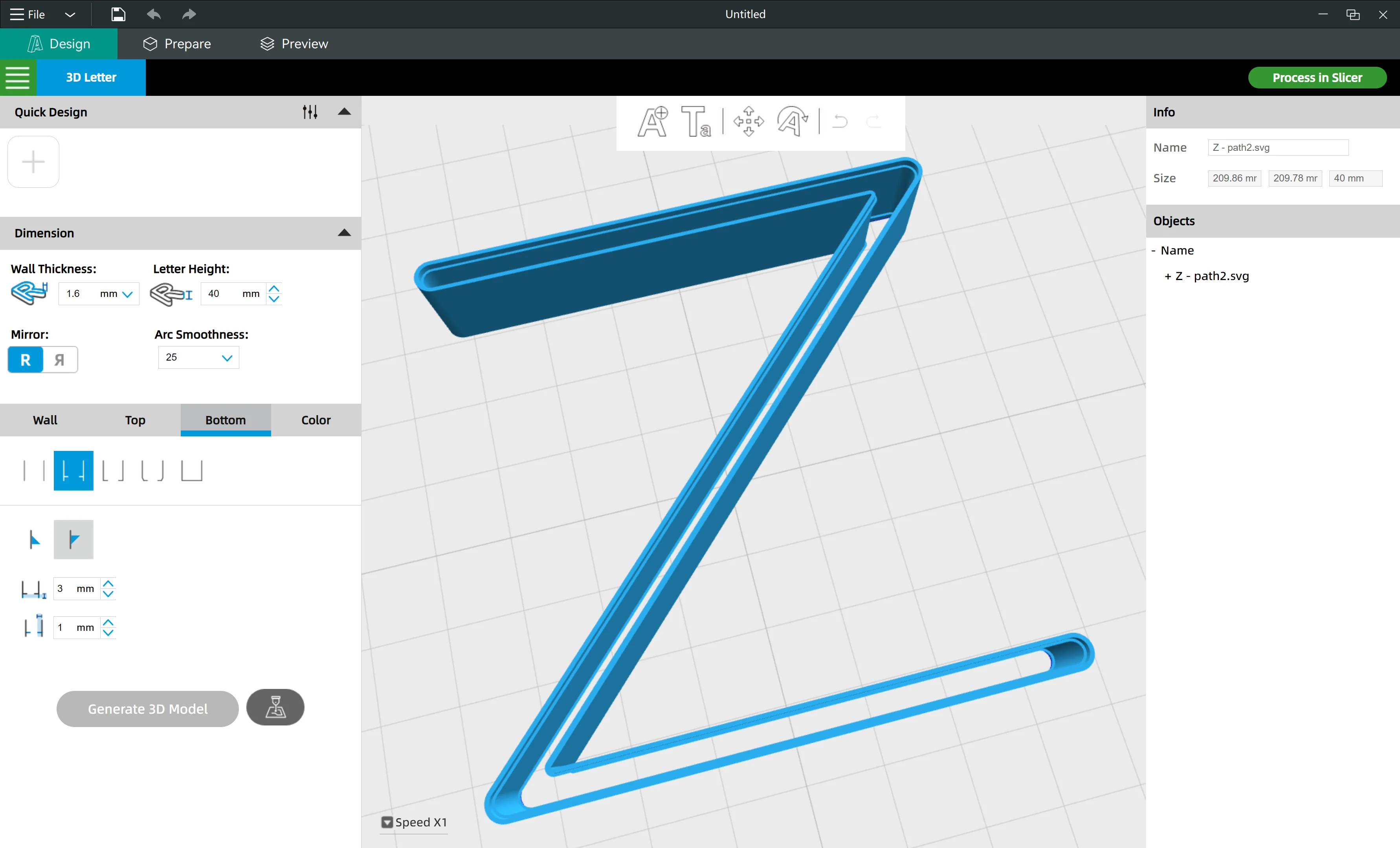
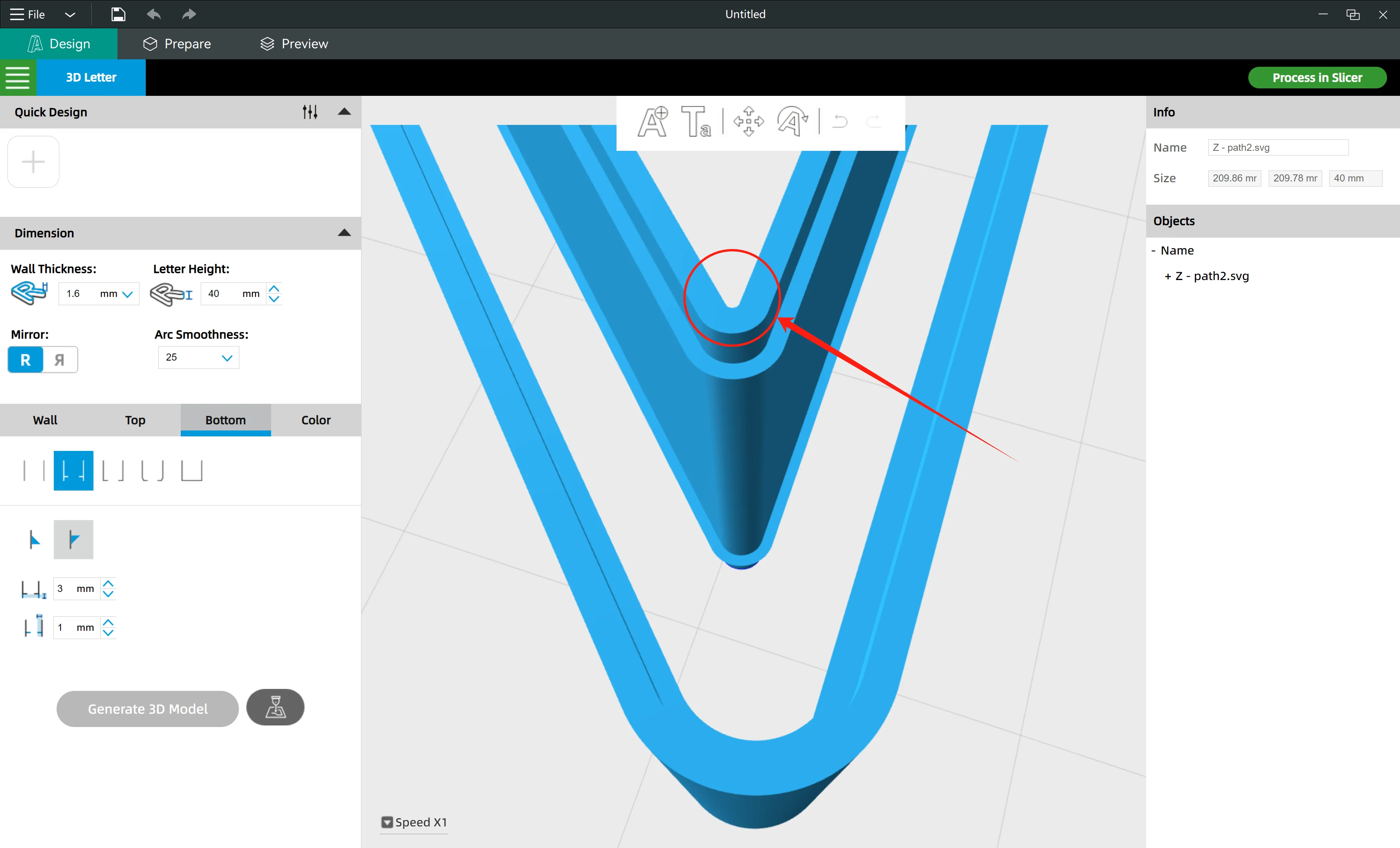
So if you generate channel letters with SVG files that have acute angle shape inside, you should round the inboard of acute angles with bigger ratios.
Below is an example of the situation: ↓
¶ 2.2 An Example
|
|
|
|
|
|
¶ 3. Import closed outlines, not open paths
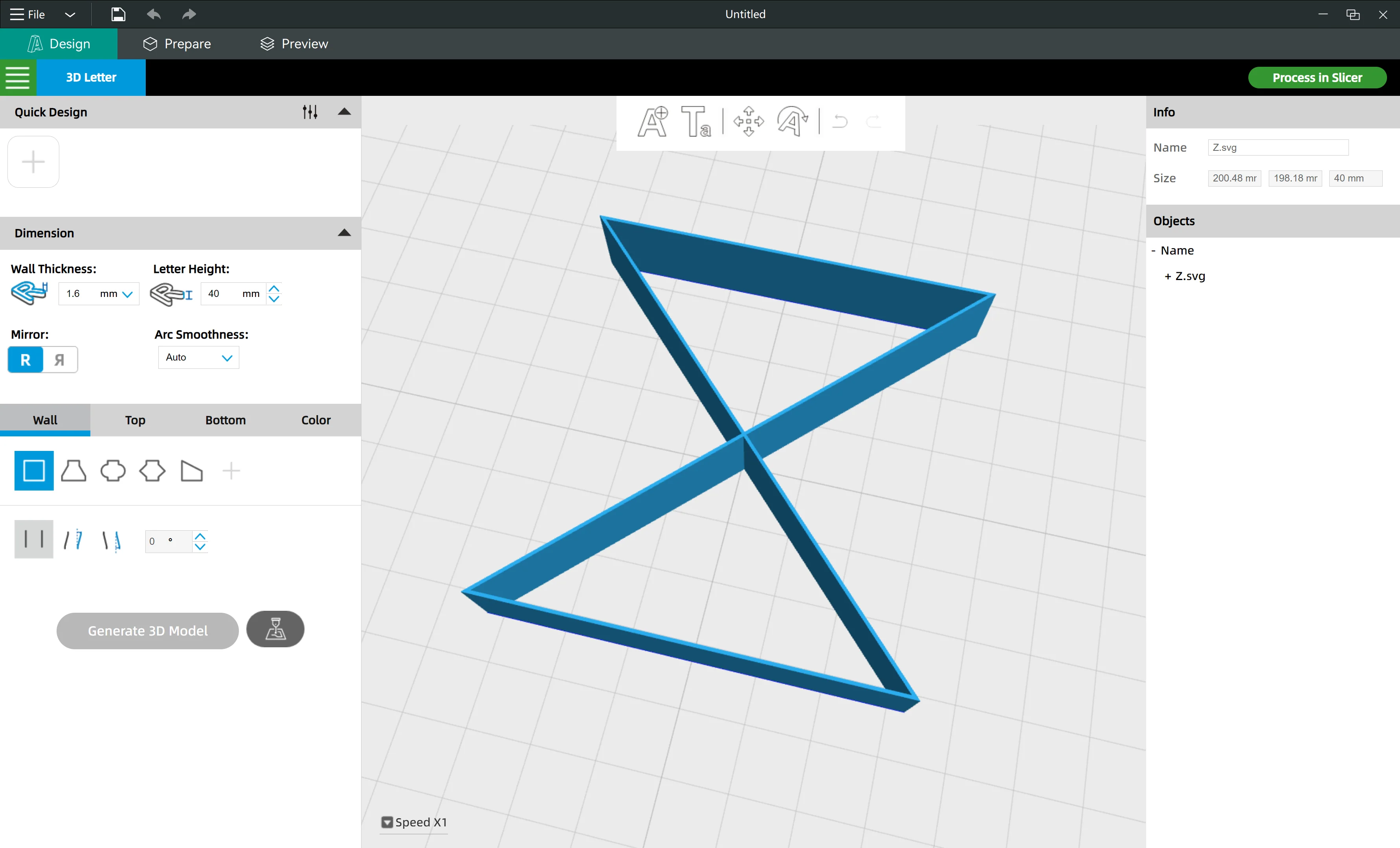
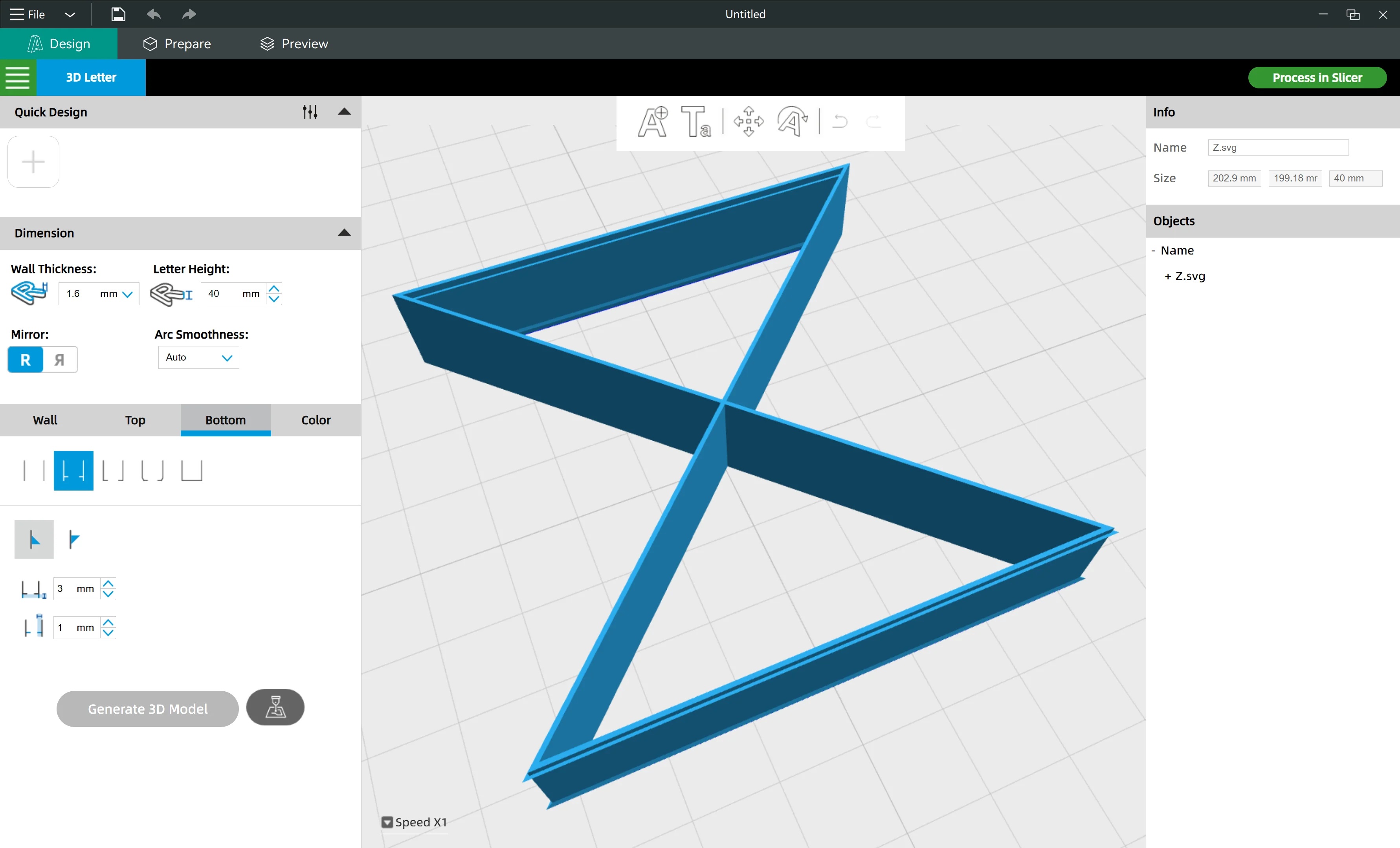
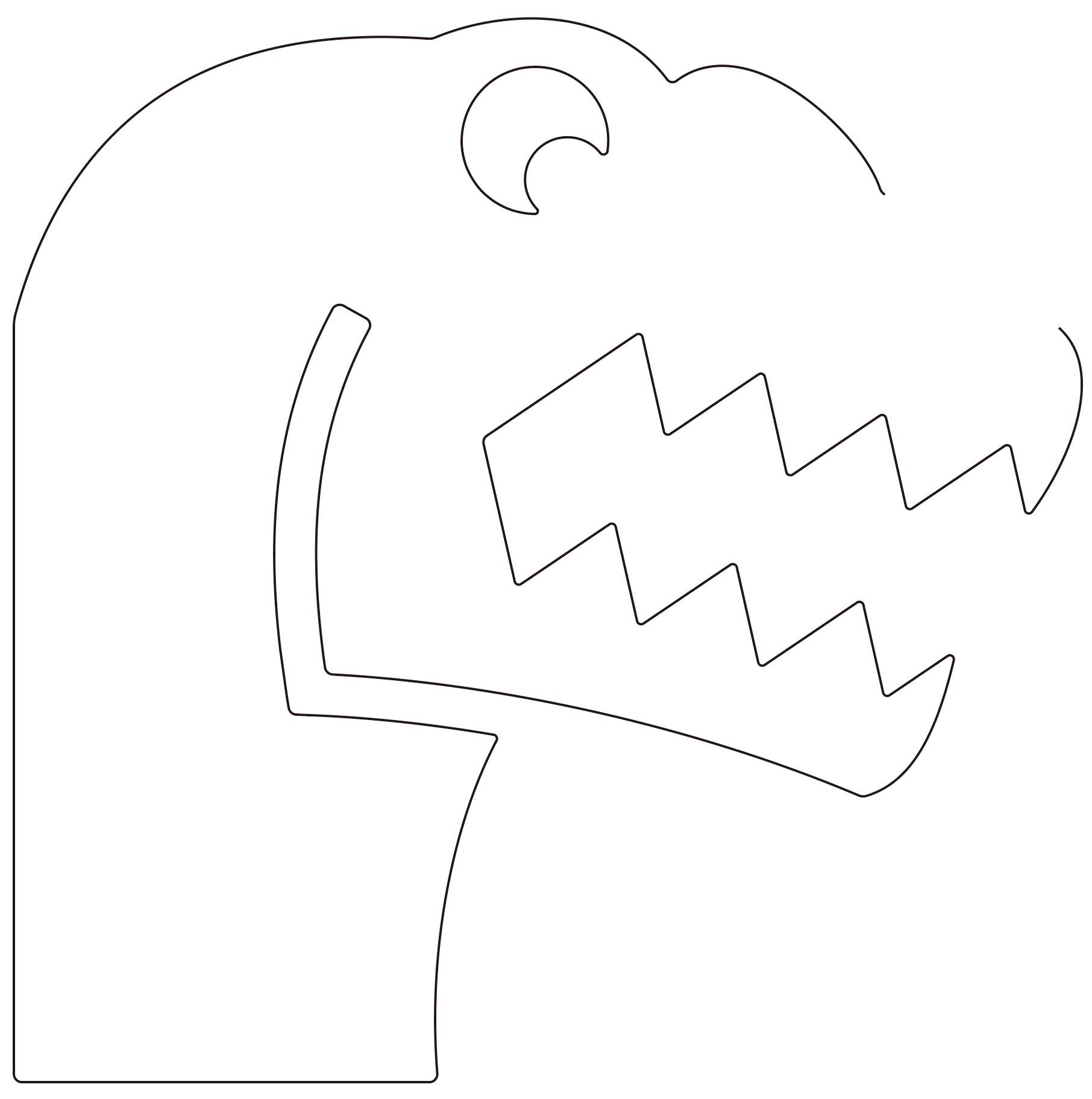
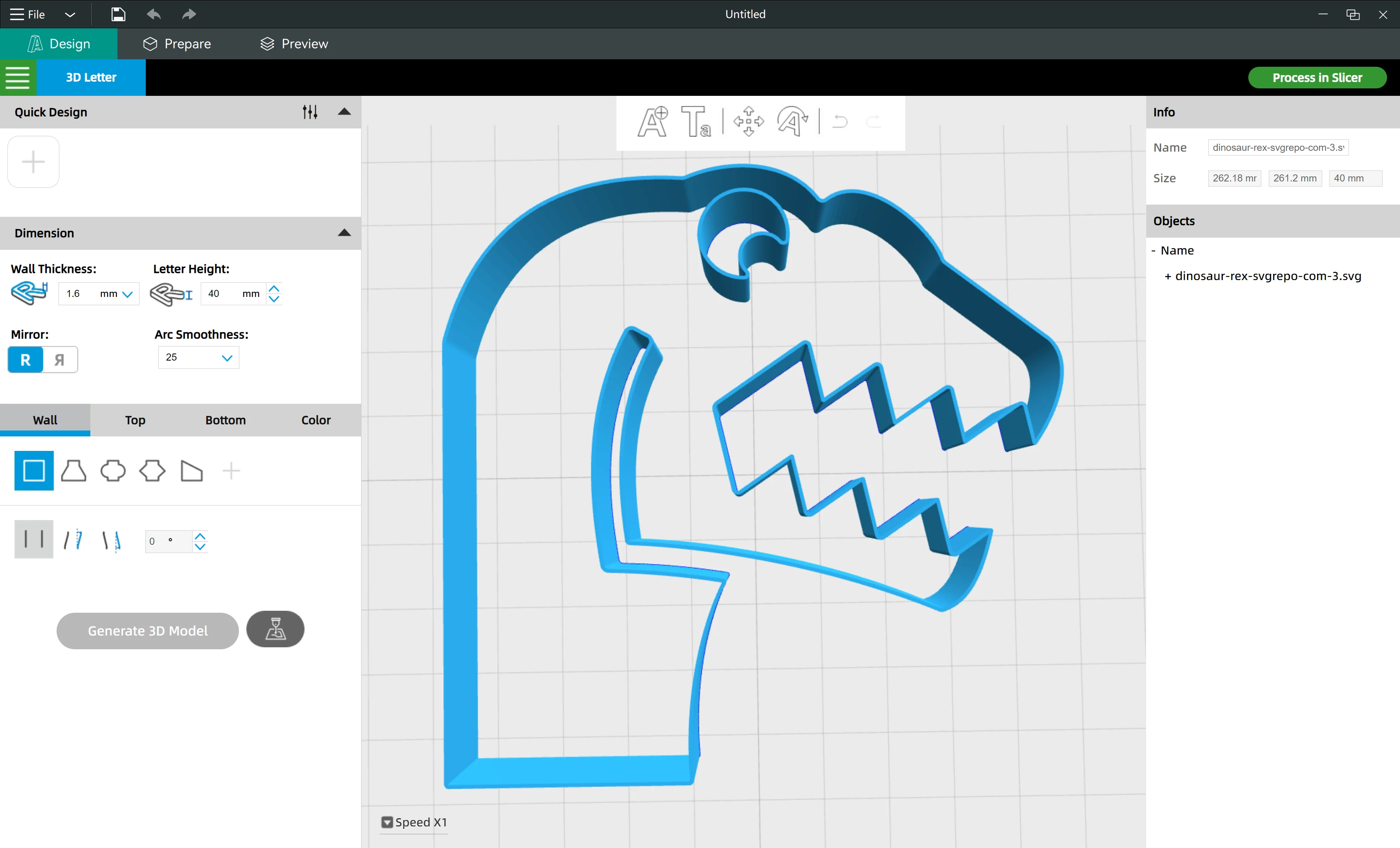
If you import an open path, FormLetter will link the two ends of the path.
But in most cases, the software won't work out anything, or it just crashes.
¶ 3.1 Case One

|
|
|
¶ 3.2 Case Two
|
|
|
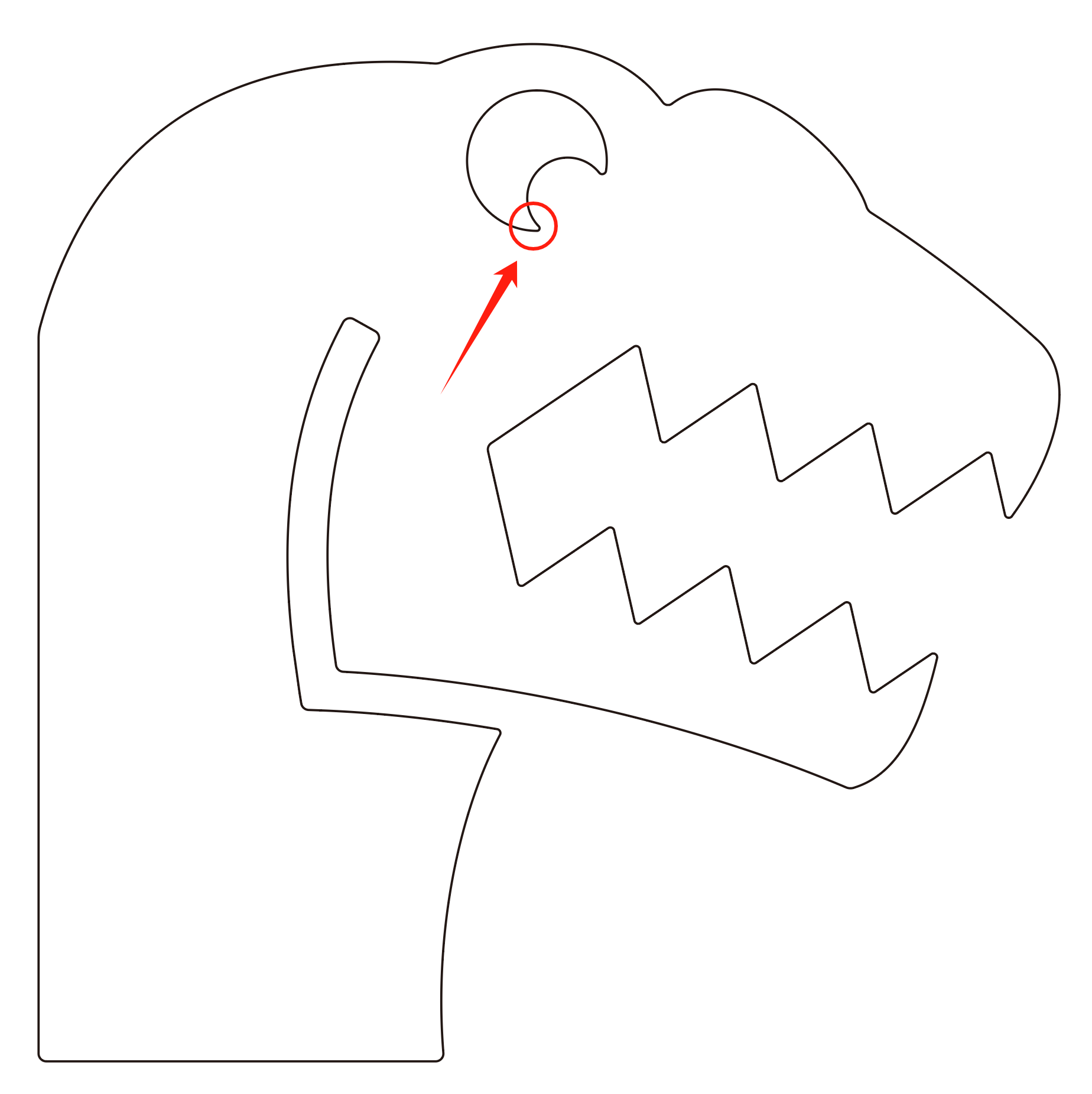
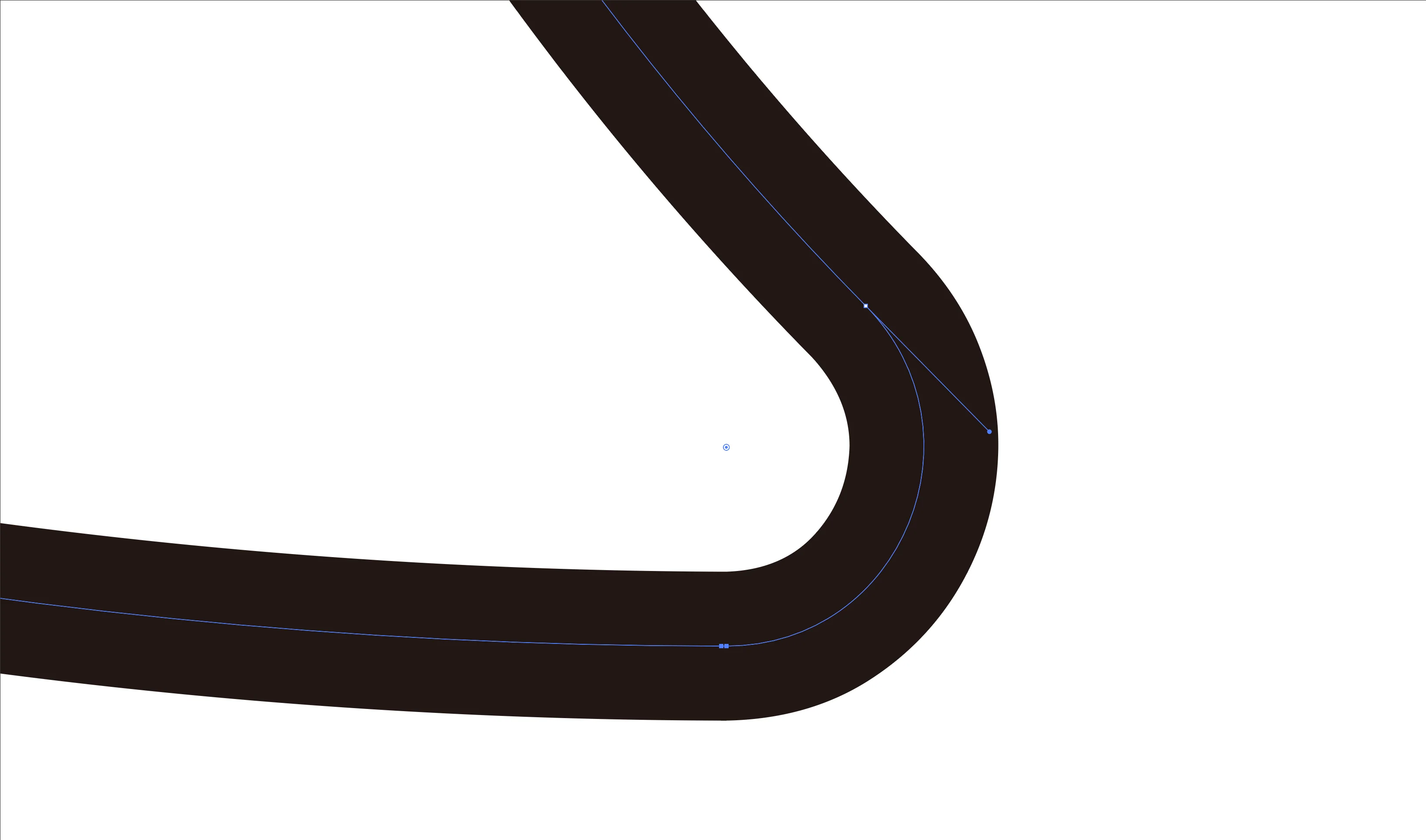
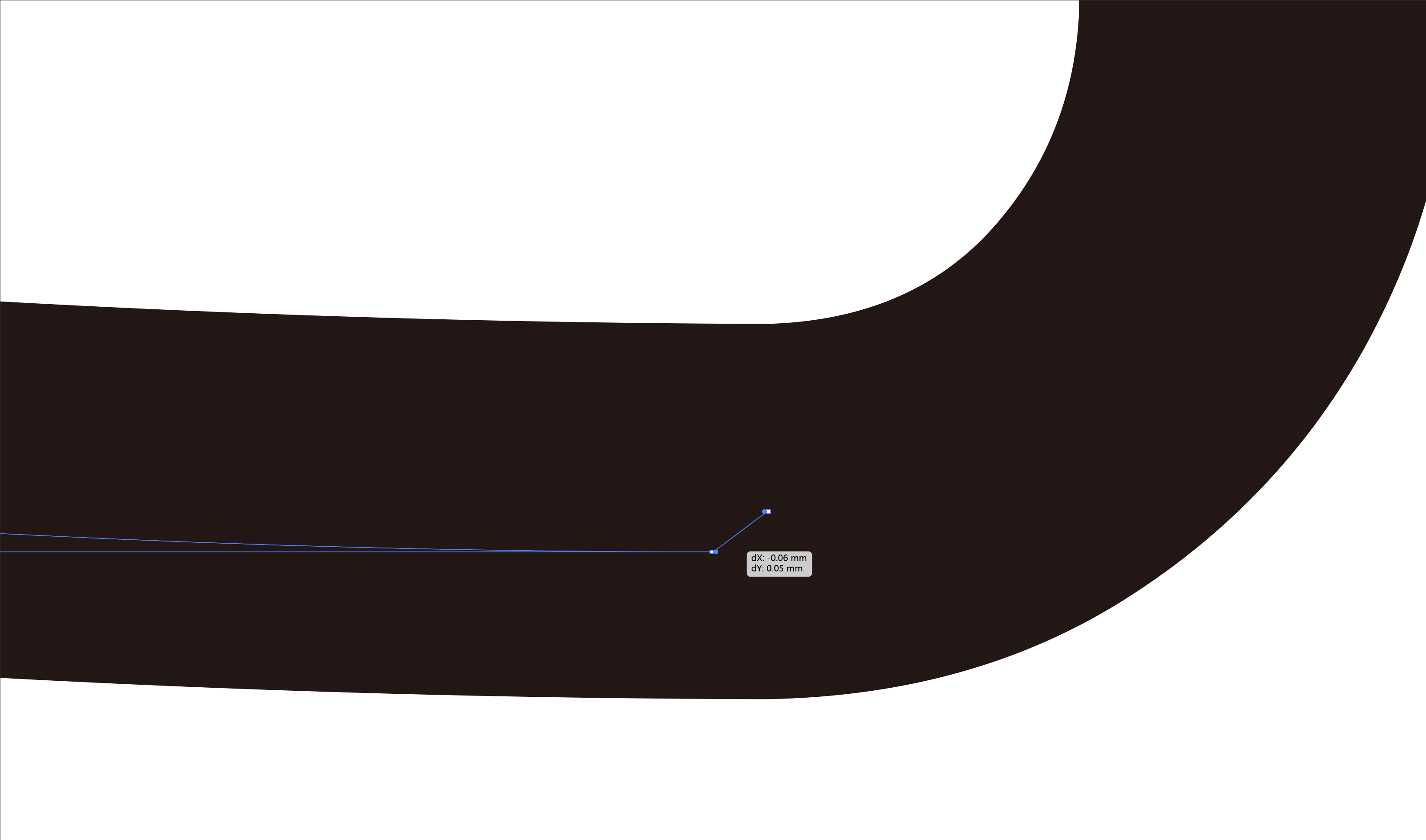
¶ 4. Nodes on the path
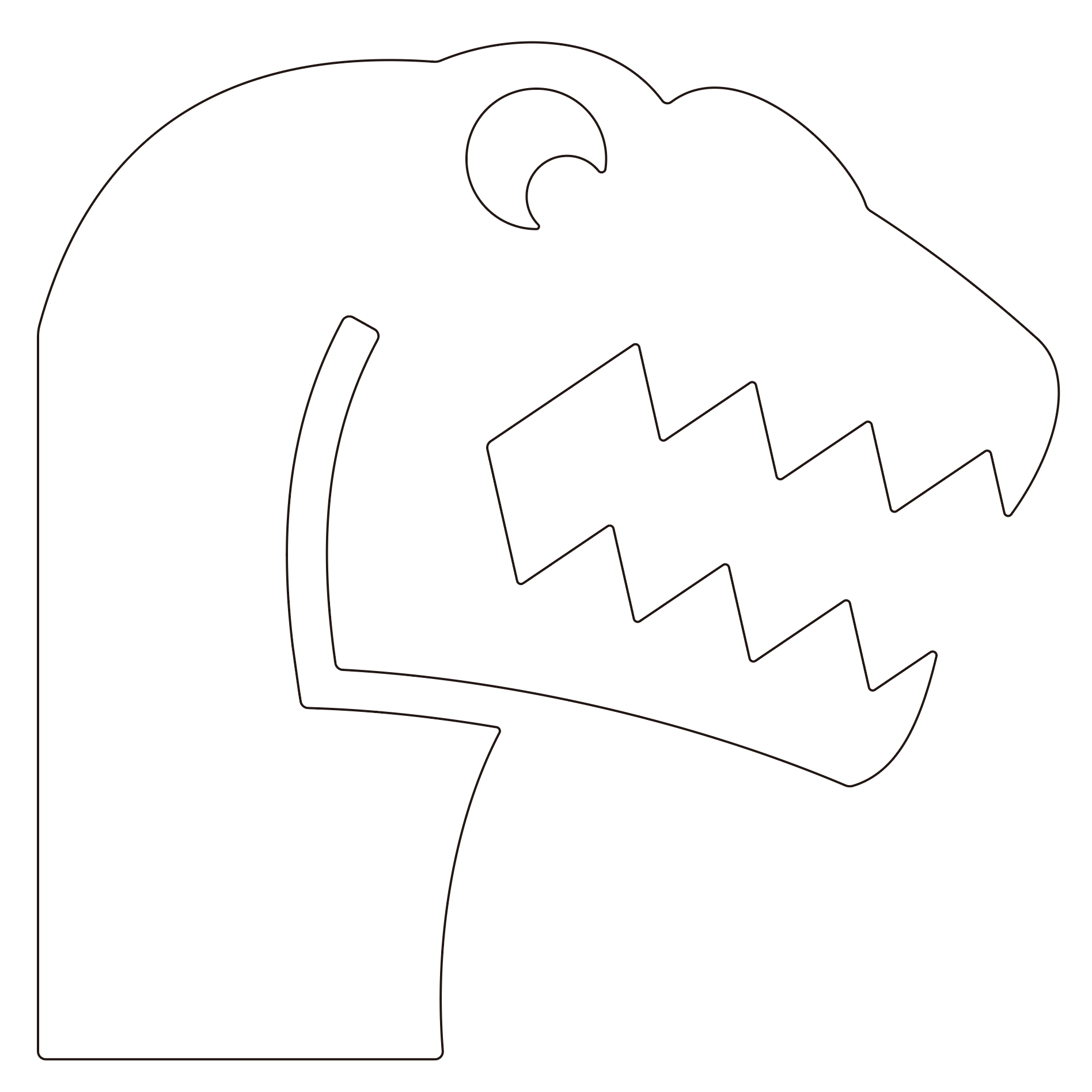
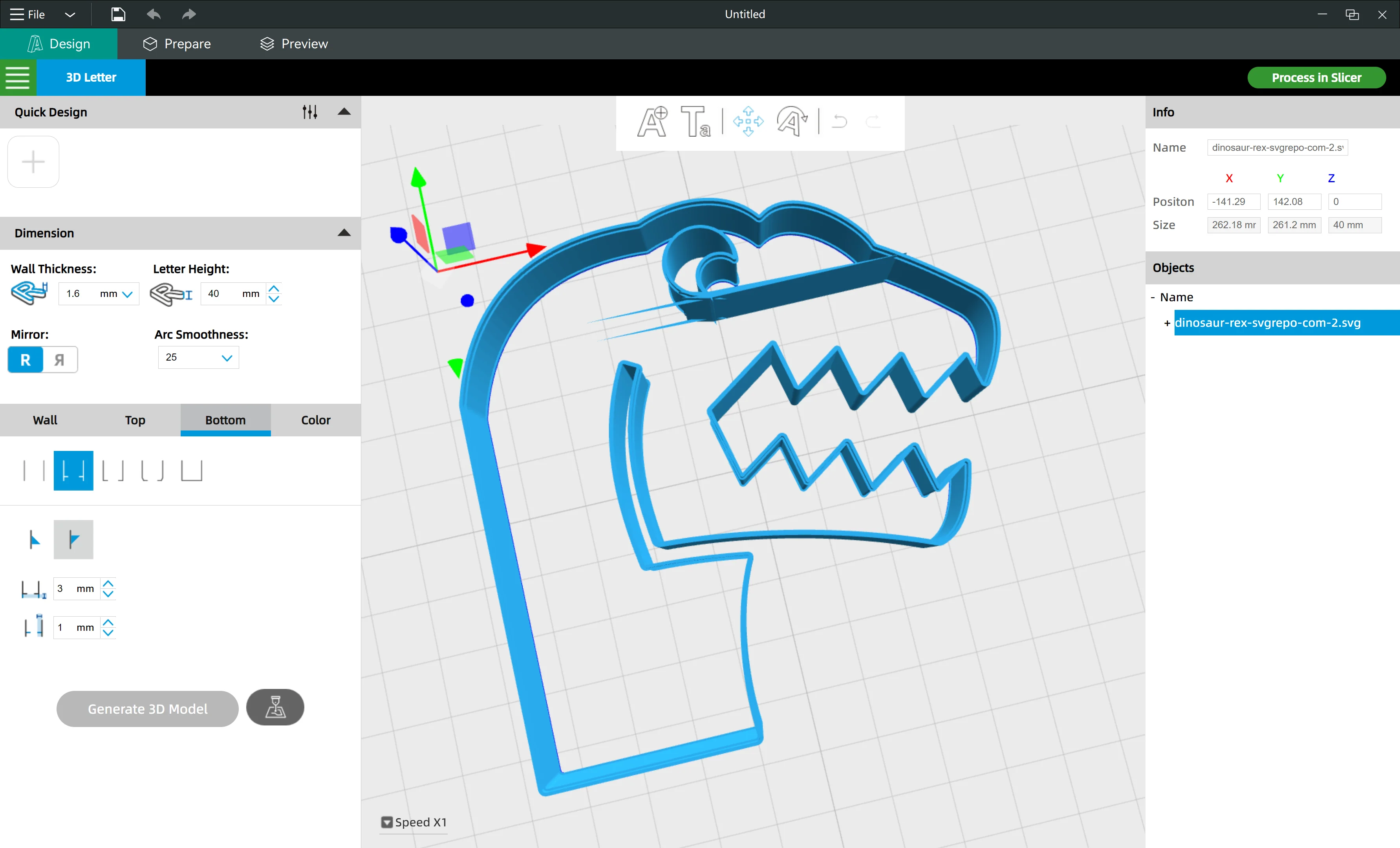
Sometimes the SVG file looks perfect, but there are errors on the paths.
It happens more often when you download SVG files on the internet.
¶ 4.1 A Case
|
|
¶ 4.2 How does it happen?
|
|
|
¶ 4.3 How to solve the problem?
Please repair the outline with the "Smooth Tool" in Illustrator. It will help you to remove unwanted nodes.
- Please zoom in the error area
- Click to choose the "Smooth Tool" and draw along the path
- The number of nodes on the path will be simplified. Problem solved