Don't change the parameters unless you really understand them
In FormLetter slicer, we offered basic slicing parameters. They are not printing quality or printing success rate related parameters.
But if you turn on the "Advanced" option, the software will show you those advanced settings. Incorrect settings will cause bad printing quality or significantly reduce 3D printing success rate.
So please don't change those "Advanced" settings if you don't understand them.
¶ Typical Workflow
For slicing and 3D printing, the typical workflow is:
¶ 1. Select Presets
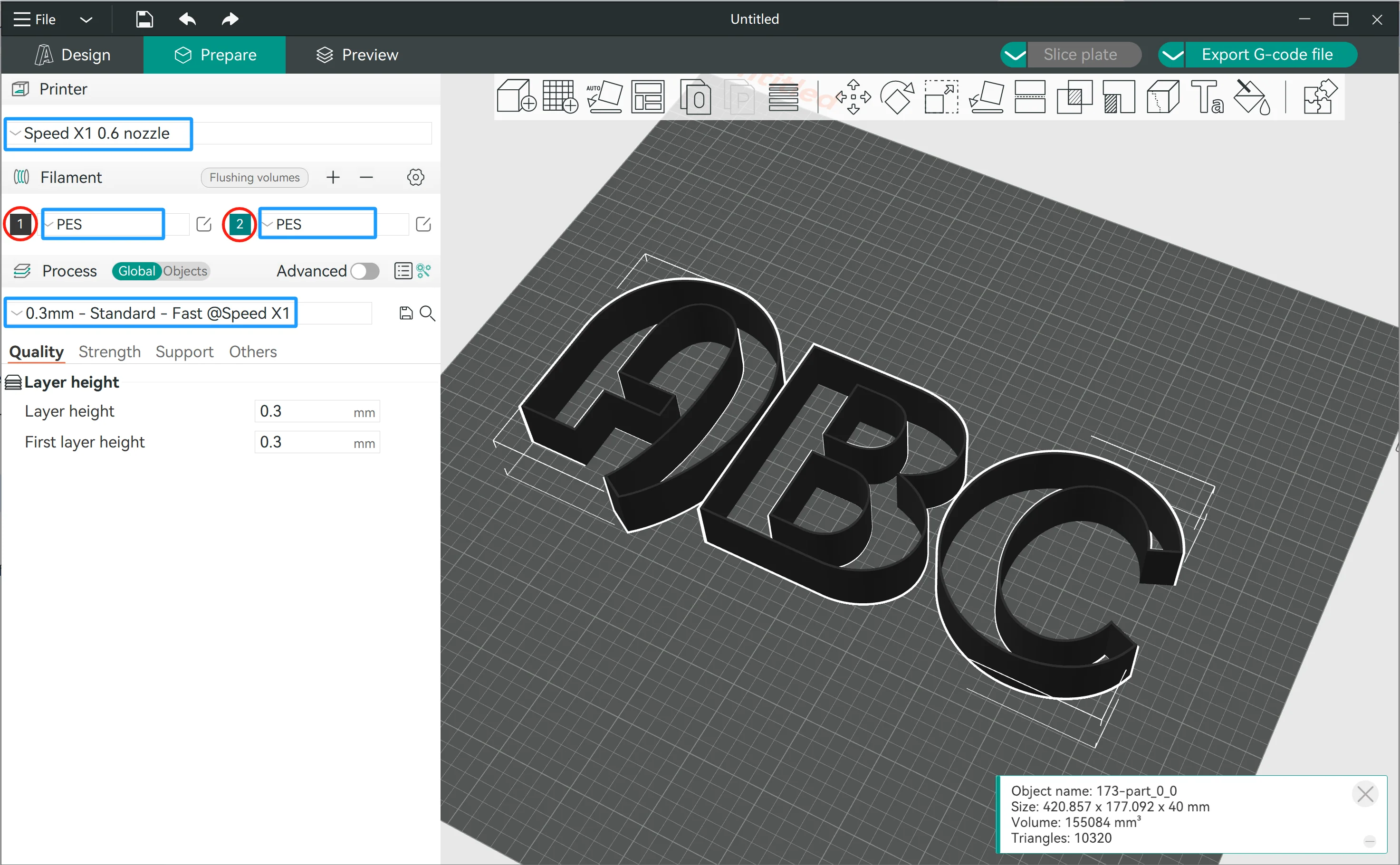
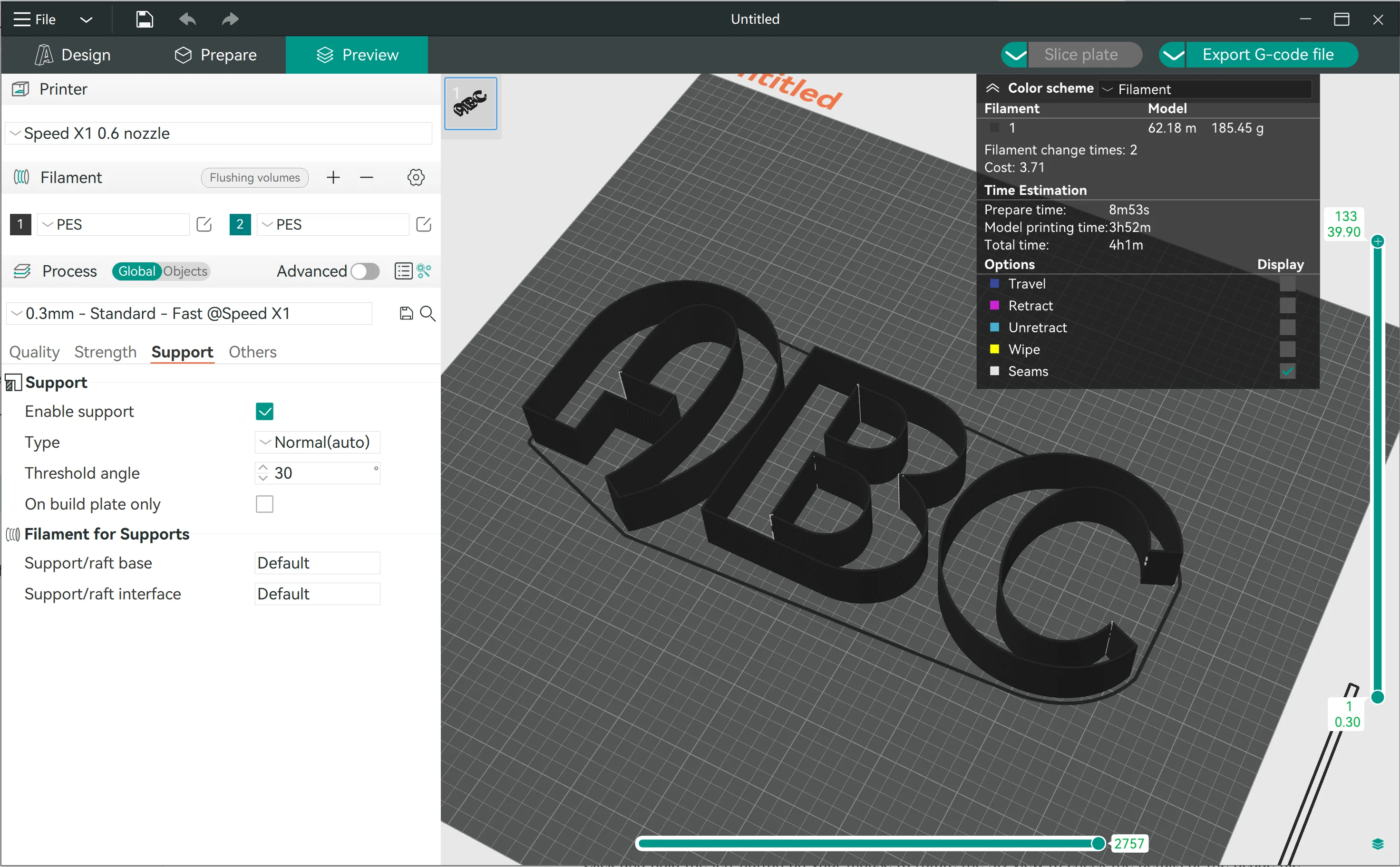
- Select the right "Printer", "Filament", and "Process" presets (blue boxes).
- Select the colors of the filament you will use (red circles), for better preview and lower the risk of mistake when doing the preparation.
¶ 2. Confirm Support Settings
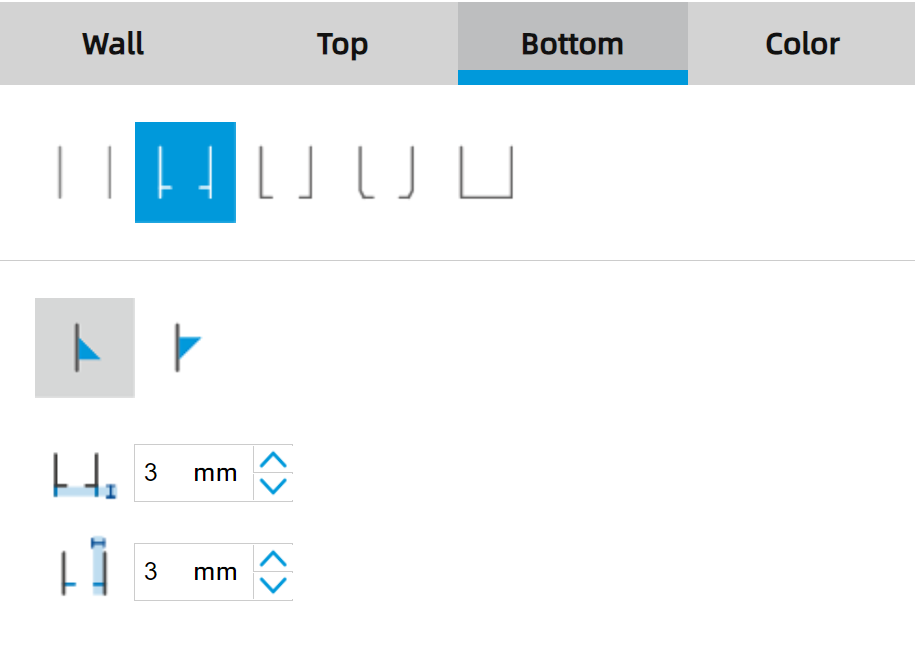
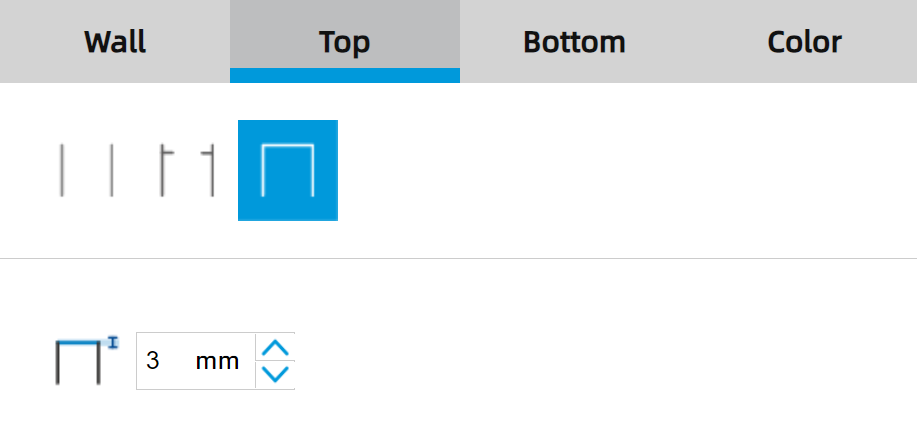
If the 3D model was generated with one of the following two settings in the “Design” module:
|
|
You need to select the "Enable support" option in the slicer to generate the support structure:
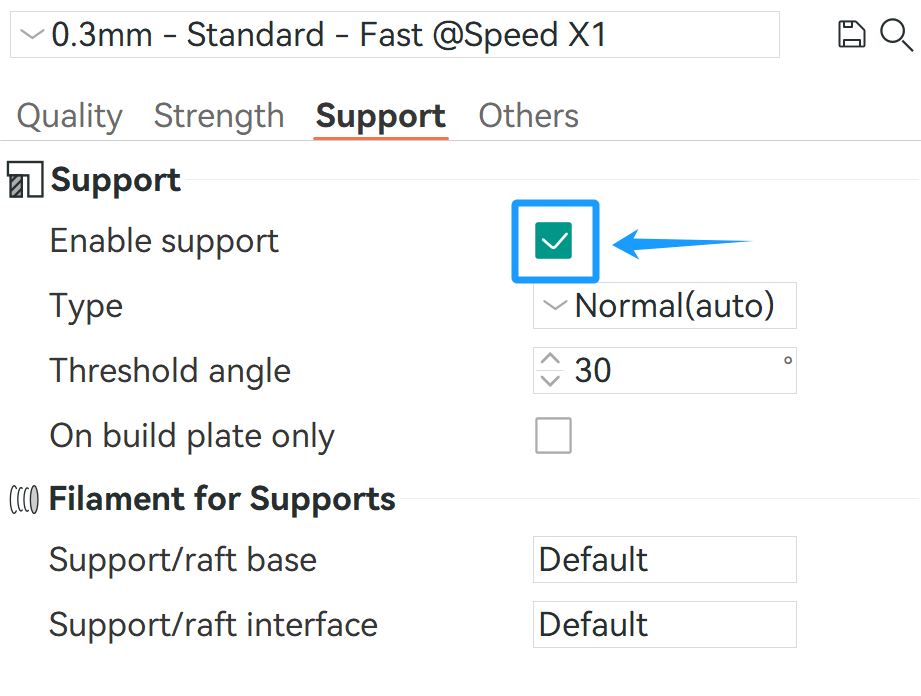
If you did not choose the two options, you don't need to select the "Enable support" option.
¶ 3. Slice & Preview
Click "Slice plate" button to preview the G-code file. ↓
¶ 4. Dual Color Printing Settings
If you want to 3D print a dual color LED channel letter, please follow the guide below.
¶ 4.1 Add a filament in the slicer
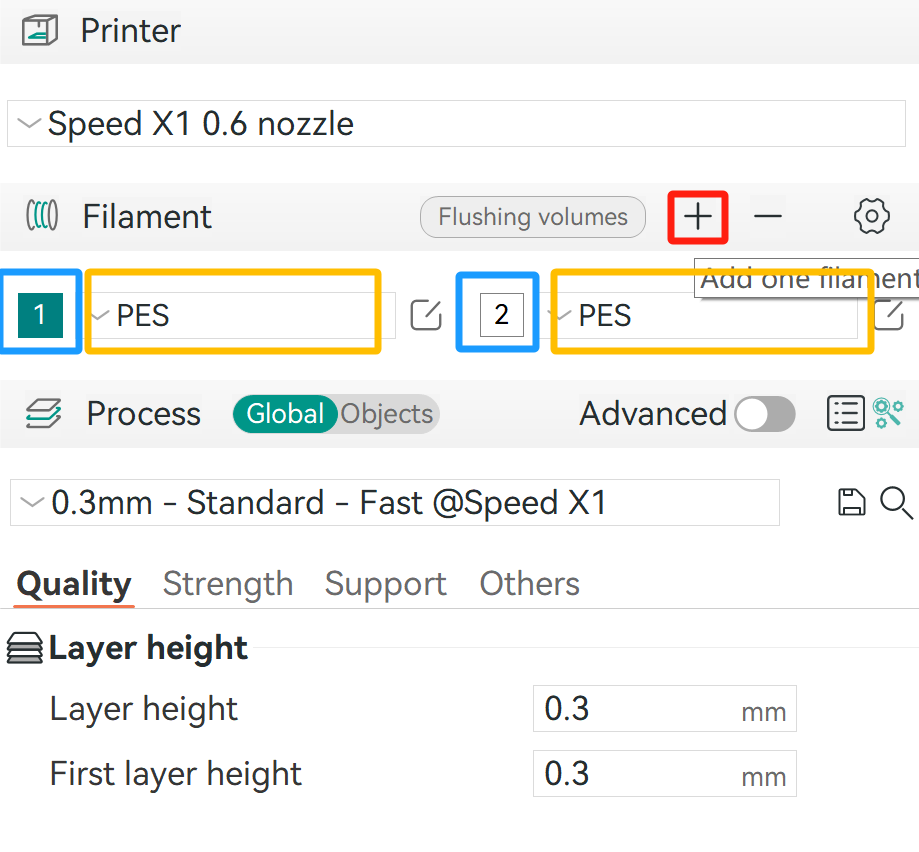
- Click the "+" button to add a new filament
- Click the "1" and "2" button to define the color of the filament for a better preview
- Click the filament drop list to select the right filament you want to 3D print
Filament Combination Rule
Don't mix 3D print PEA and PES (or PES-FR) filaments, they cannot firmly bond together.
Mix 3D print PES and PES-FR filament is available. They are both based on PETG plastic.
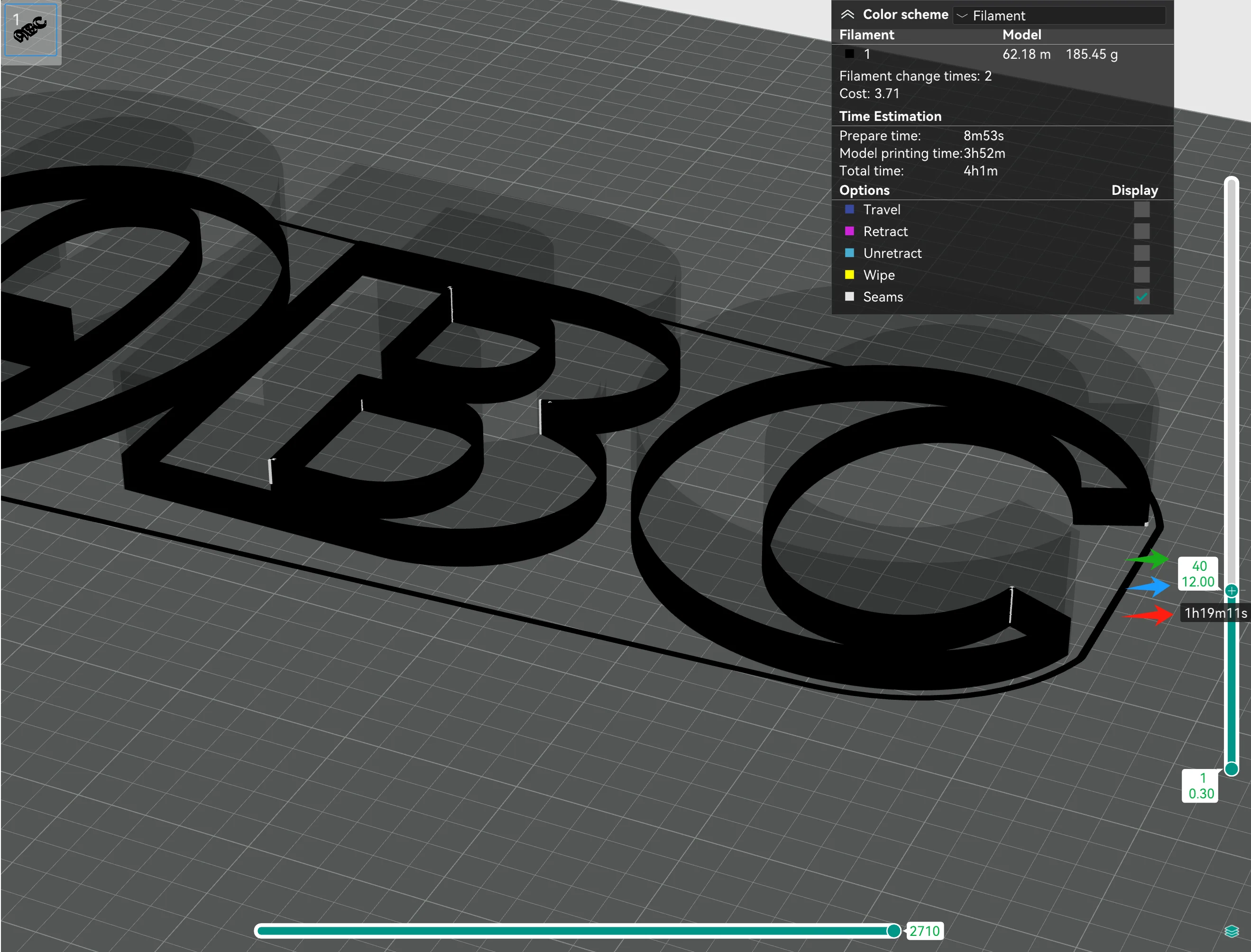
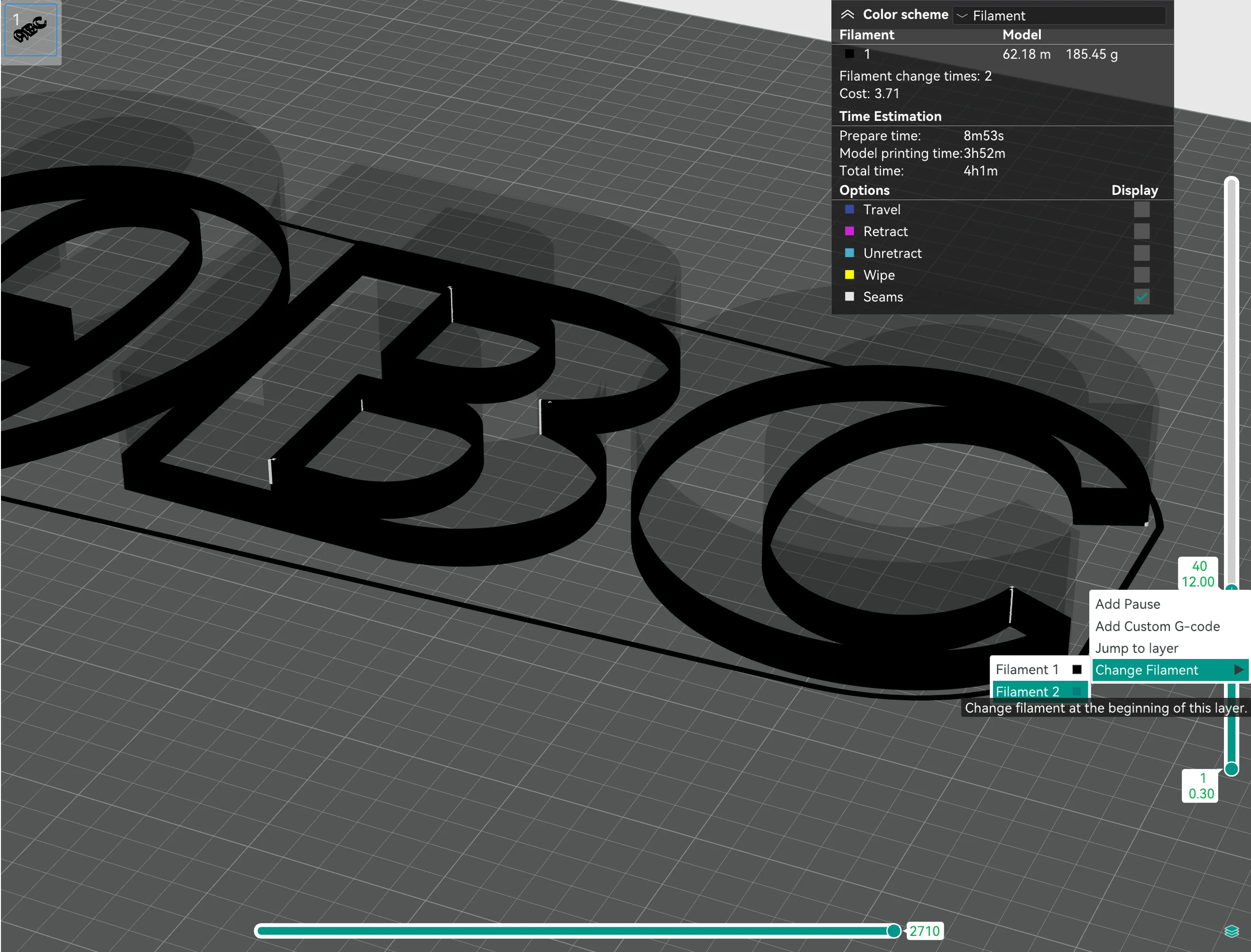
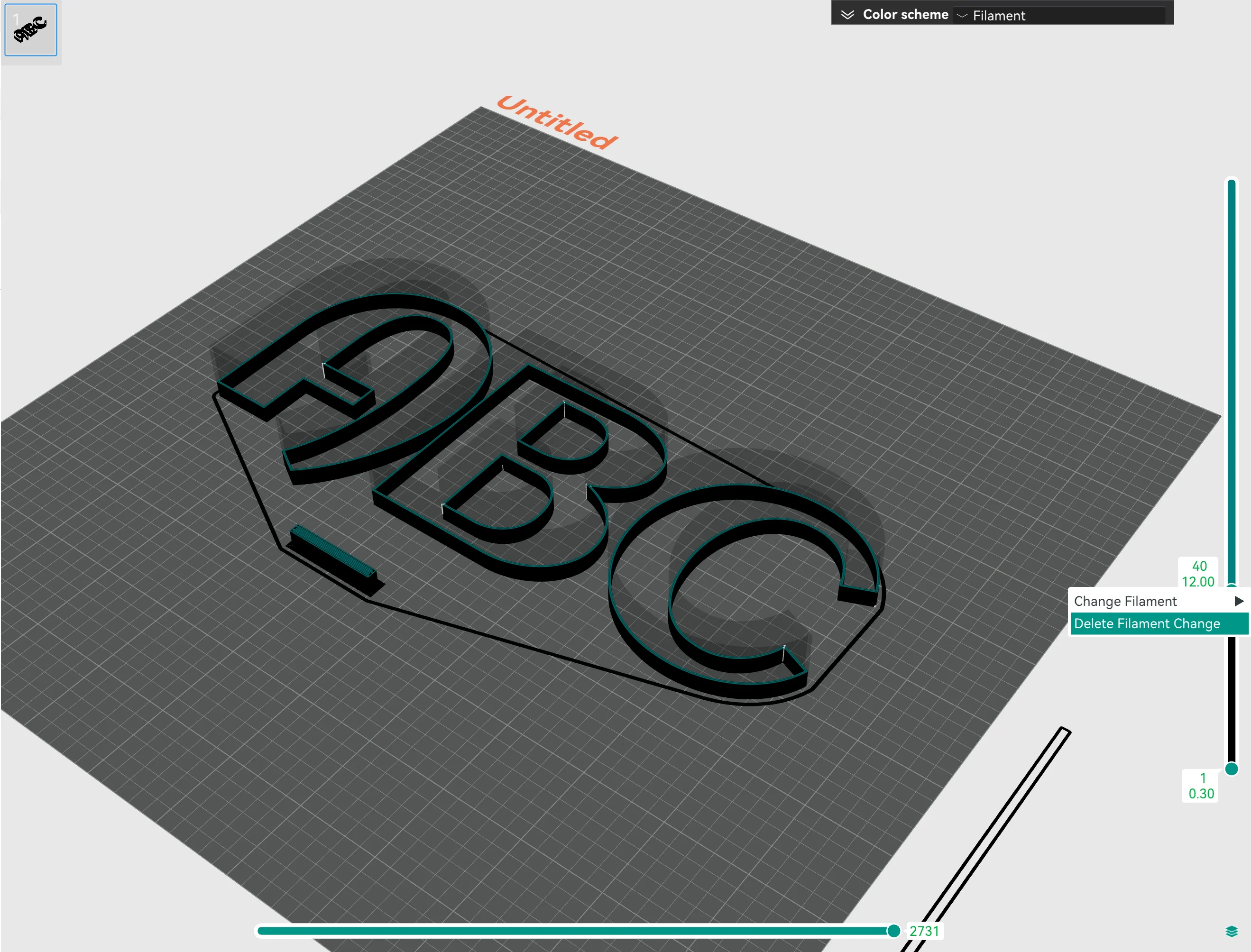
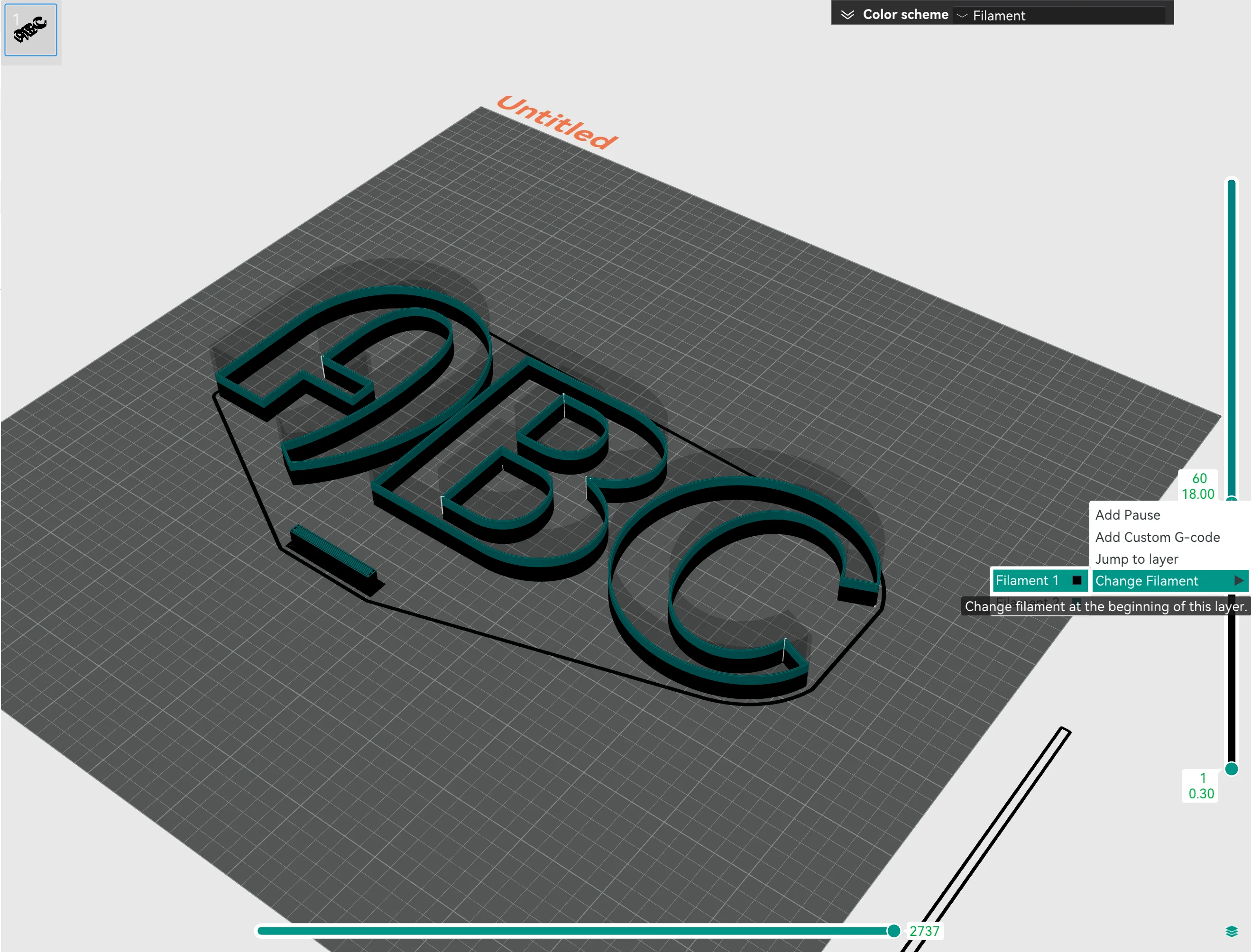
¶ 4.2 Set filament switching height
Move the control handle on the left of the preview interface to a certain height you want to switch the filament like below: ↓
|
|
|
|
If the software reminds you that the "Prime Tower is too close to others, and collisions may be caused", please handle the situation according to the following guides. ↓
¶ 4.3 Flushing tower position
When you set it to print with two filaments, the printer will need to flush the hot-end every time it switches the filament, so FormLetter will generate a flushing tower (prime tower) to extrude to flush the plastic after switching.
The auto generated flushing tower might be positioned at an overlapping area with the 3D letters. So you need to manually move it in a free area. ↓
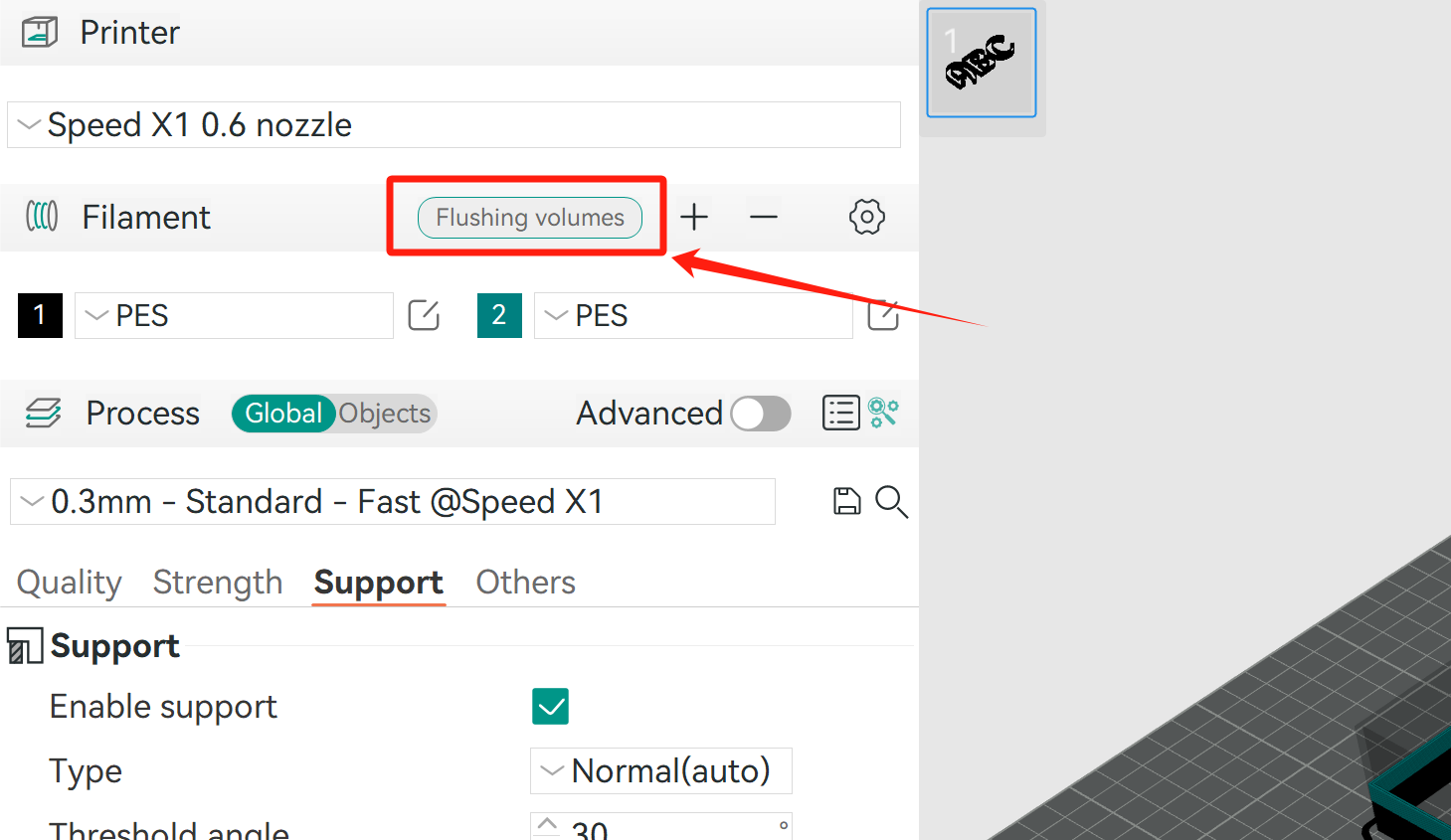
¶ 4.4 Flushing volume
In the FormLetter software, we set a default flushing volume for 80% of all filament switchings.
But sometimes the volume is not big enough to make sure the hot-end is cleaned up, so you will need to increase the volume a little bit. Otherwise, the dark filament will leave residual into the light color filaments.
 |
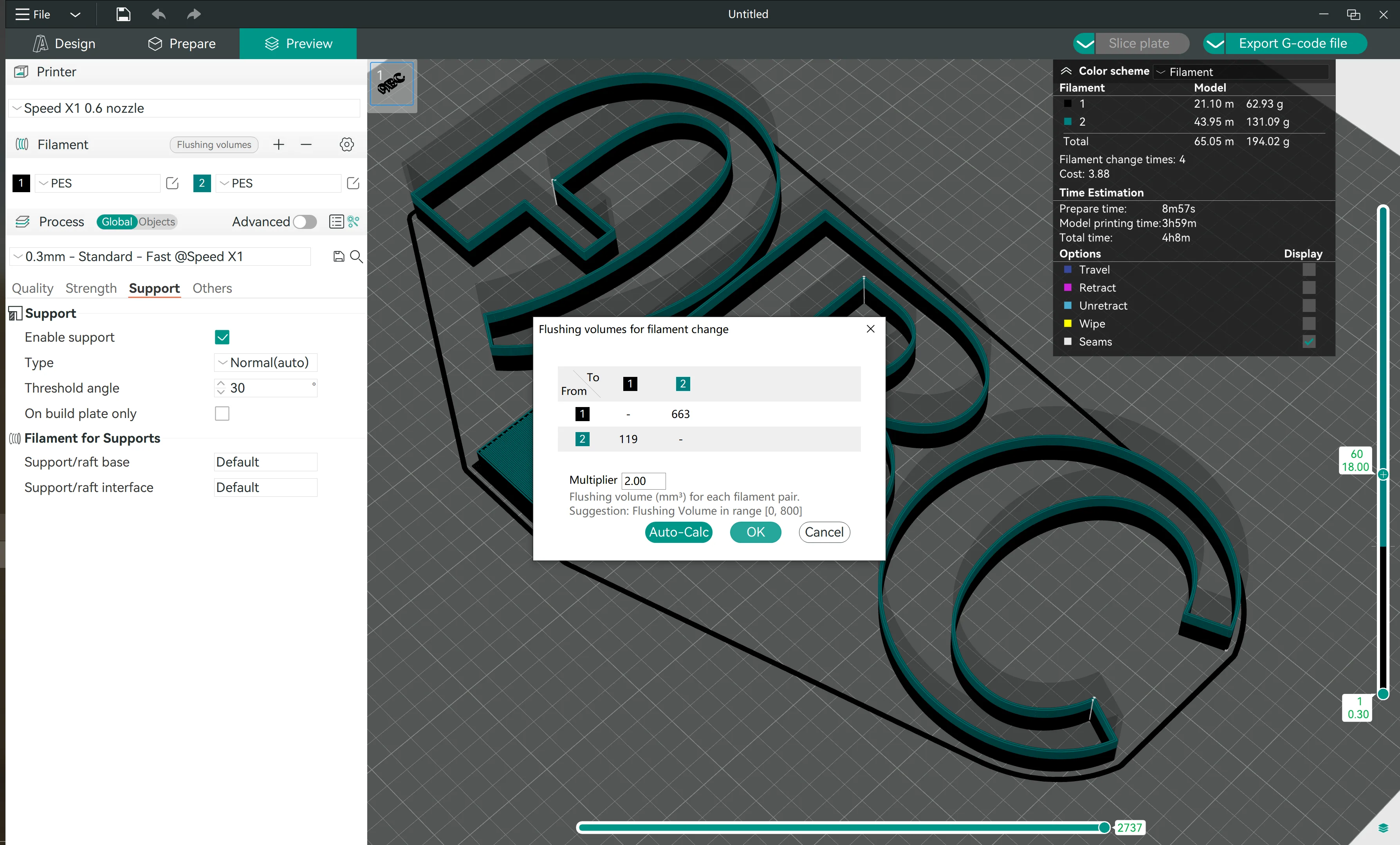 |
- When you are planing to print with dark and medium brightness colors, like black filament and red/blue/purple filament, please increase the flushing volume multipiler to be 2 .
- When you are planing to print with dark and light color filaments, like black filament and white/yellow/pink filament, please increase the flushing volume multipiler to be 3 .
¶ 5. Confirm the 3D printing data
At the upper right corner of the user interface, the software shows basic printing data, like filament consumption and time estimation.
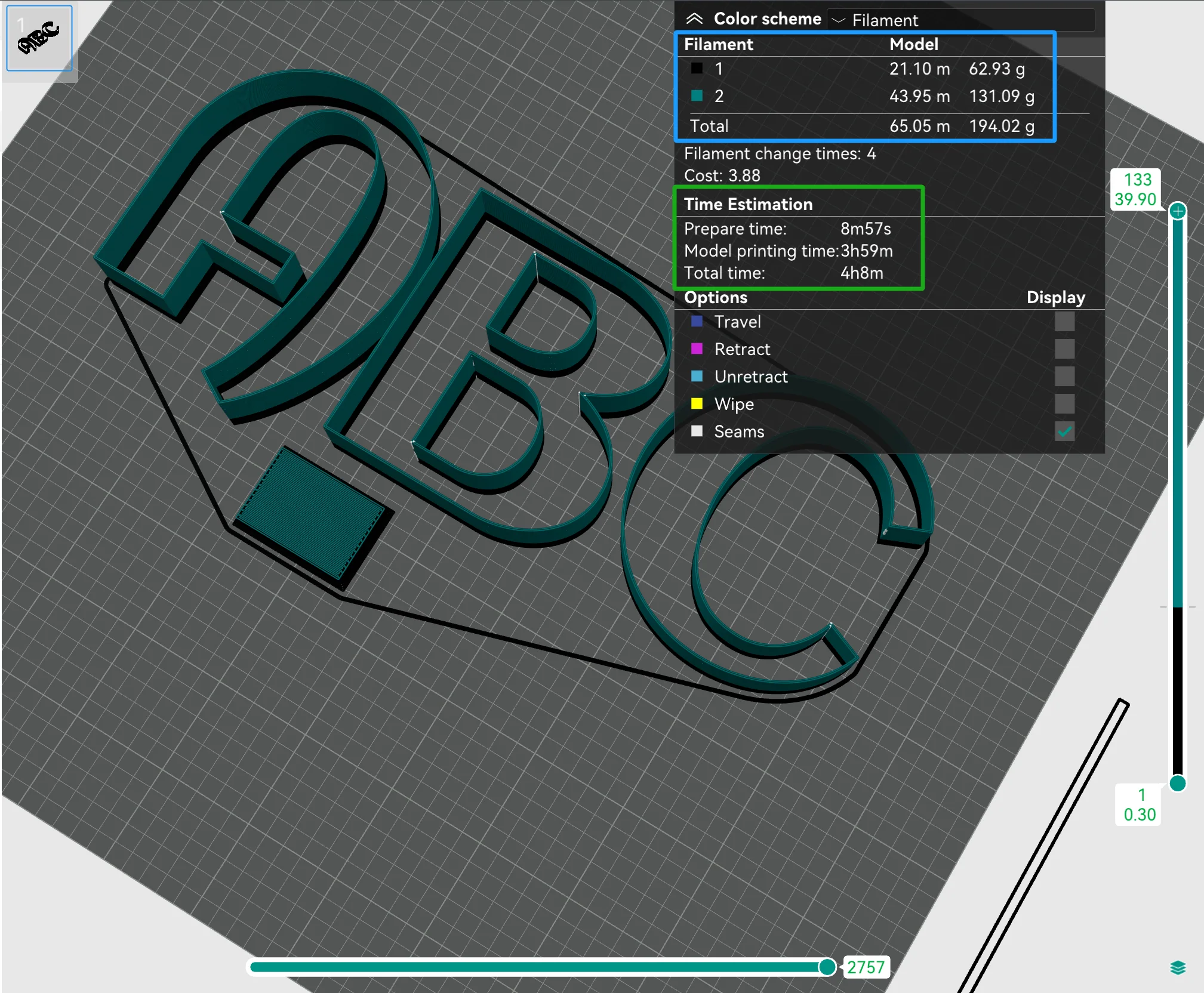
Remaining filament on the spool
Please do confirm the remaining filament weight on the spool before printing, in case the filament runs out during printing.
¶ 6. Save the G-code file on the SD card
Click the "Export G-code file" button to save the G-code file on the SD card.
Plug the SD card into the Speed series 3D printer, select to print!